TECHNIAHQROBOT / INDEPENDENT ROBOTICS REPORTINGENGLISH EDITION / 24 November 2026
RobotsHumanoidEngineAI

T800

Pro edition

T800 Pro has distinct joint and hand hardware from the 25-joint Basic and Open Source editions.

Country
China
Applications
Research · Industrial · Service
Product status
Sales inquiry

Published specifications for T800

Height
173 cmShared stated height across the four T800 editions.

Not established for this configuration: Mass, Actuated joints, Battery runtime, Reported speed.

Hardware and components

Arms and legs
7 DOF per arm and 6 per leg.
Hands
7 DOF per hand.
Vision
Binocular camera and 3D LiDAR.
Compute
Eight-core CPU and AGX Orin 64 GB; Thor offered on request.
Motors
Internal-rotor permanent-magnet synchronous motors; air cooling.

Control and operating conditions

Pro lists secondary development and a handheld controller. SDK/API documentation defines available functions. The manufacturer says some illustrated functions remain under development.

Ordering and access

The manufacturer accepts purchase inquiries by configuration. A public Pro price and firm delivery date are not provided.

Manufacturer and development

EngineAI was founded in Shenzhen in October 2023. Its engineering organization covers mechanical design, actuators, motion control and embodied AI.

Questions specific to EngineAI T800

What needs clarification before testing?

Request a delivered-model joint map because the advertised total and body-part breakdown disagree. Speed claims need terrain, distance, control mode, repeated attempts and fall rates; confirm the installed compute option and thermal limits.

EngineAI T800: Complete buying, setup and programming guide

A complete beginner guide to buying, starting, walking, running, dancing and programming the T800. Specifications and availability reviewed November 17, 2026.
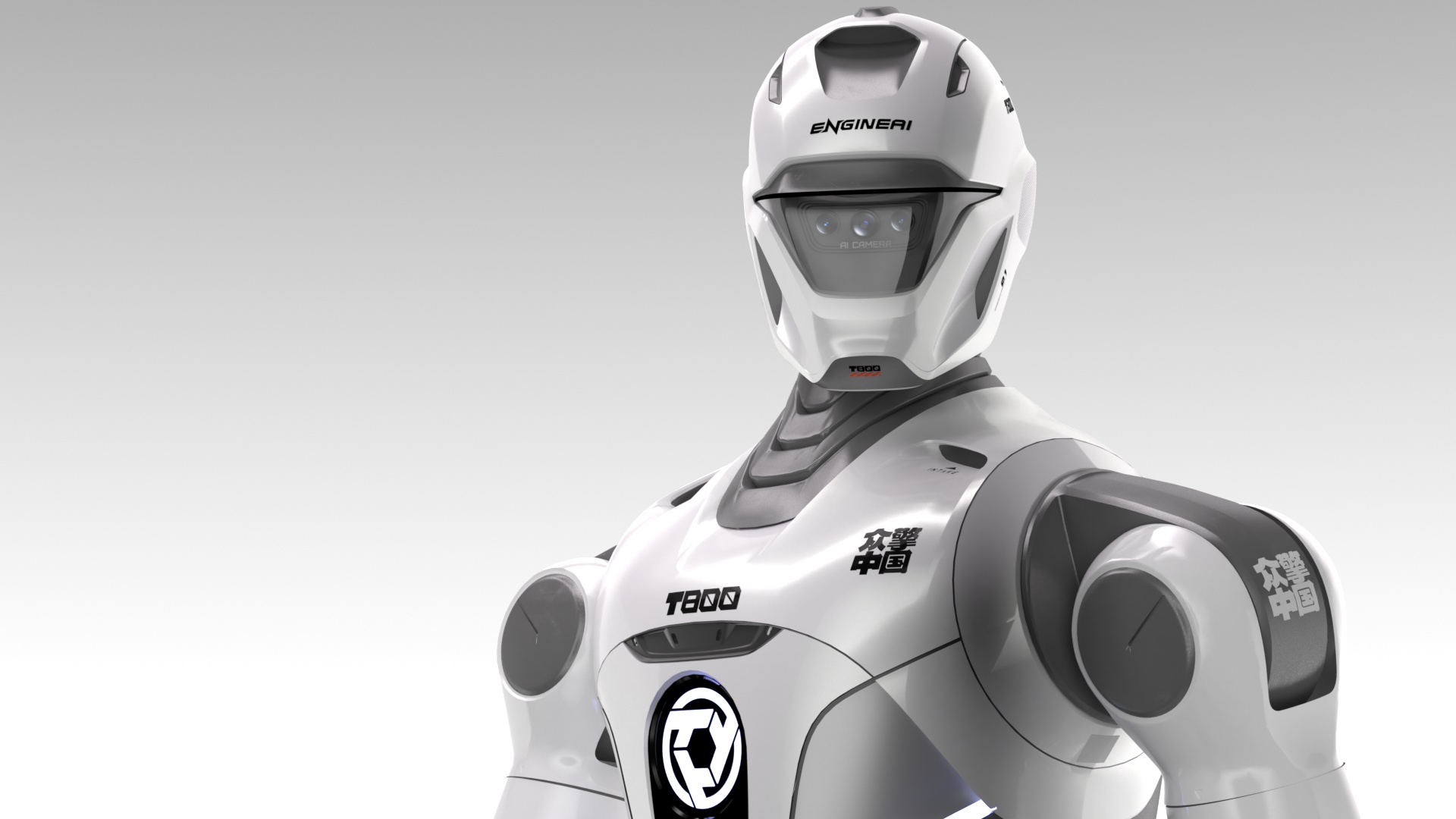
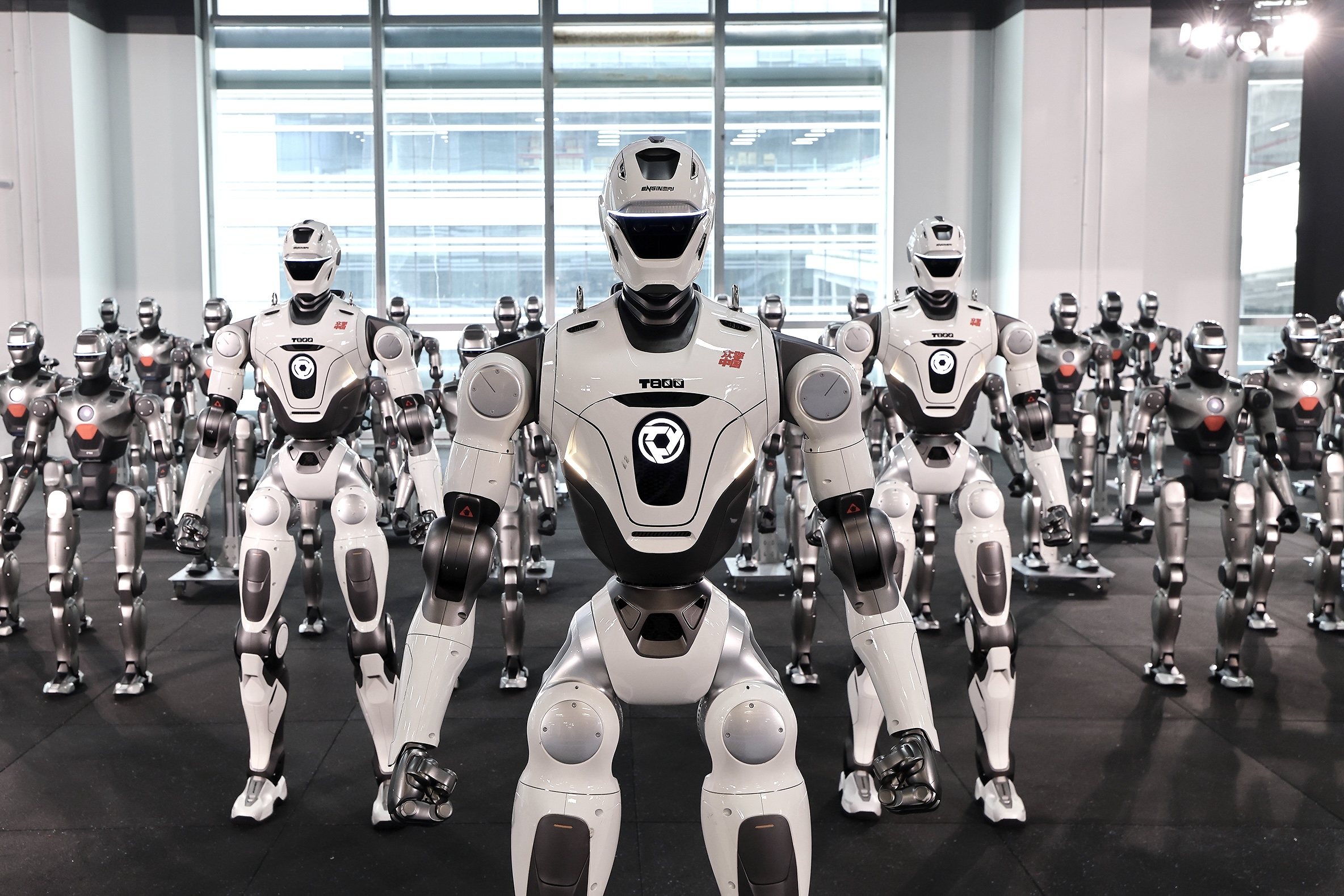
EngineAI T800 manufacturer promotional imageEngineAI T800 at CES 2026First T800 production batch in Shenzhen

EngineAI promotional material via New Atlas, CES photograph via GenK and EngineAI production photograph via PR Newswire.

173 cmHeight
450 NmPeak leg joint torque
25–43 DoFActuated joints, Developer / Pro
$25,000Approximate launch price

1. What is the EngineAI T800?

The T800 is a human-sized electric humanoid robot developed by EngineAI Robotics for industrial and commercial applications, research and robot behavior development.

Its articulated legs, powered arms, stereo cameras, LiDAR and two onboard computers support walking, carrying objects and dynamic movements. Active cooling and powerful joints are designed for demanding physical activity.
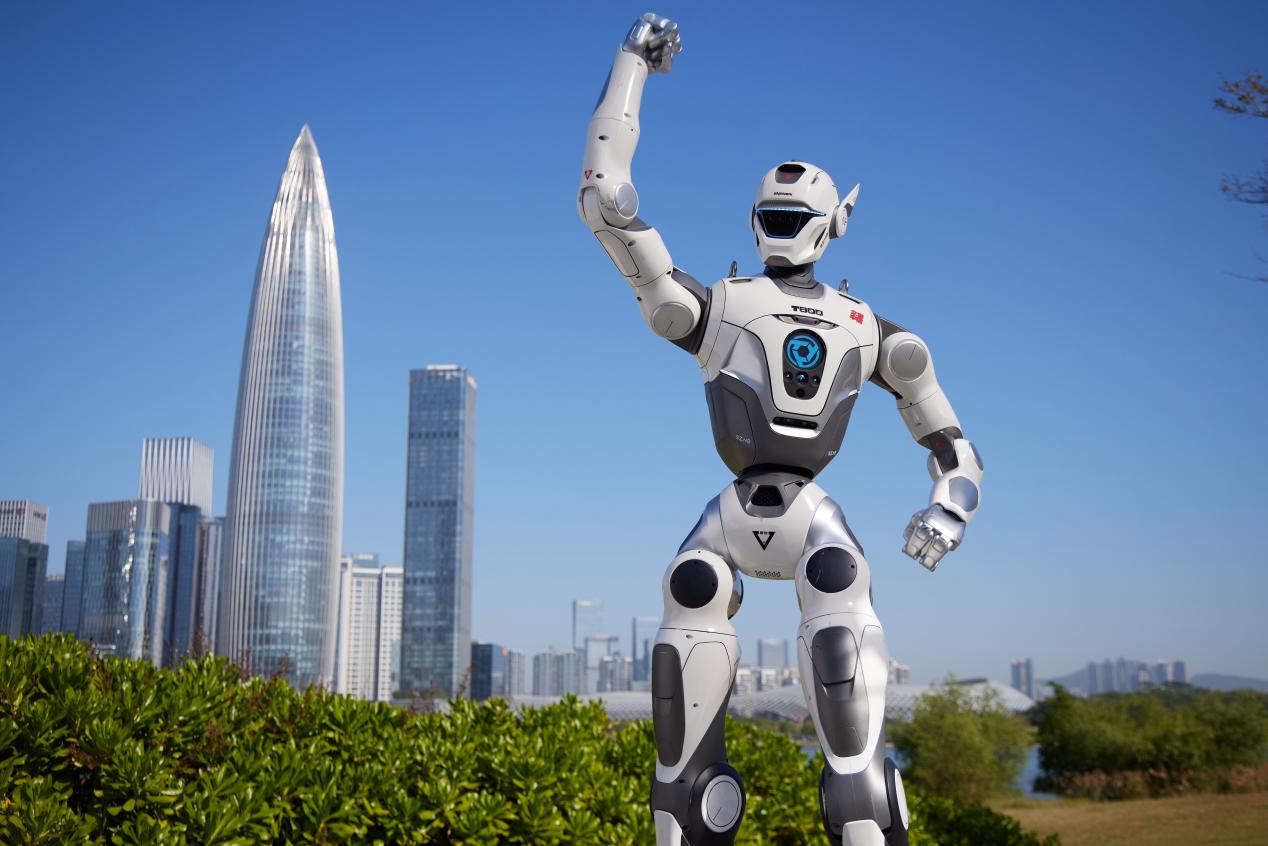
T800 humanoid promotional photograph
T800 humanoid promotional photograph · EngineAI via Robotics Business News

2. Who created the T800?

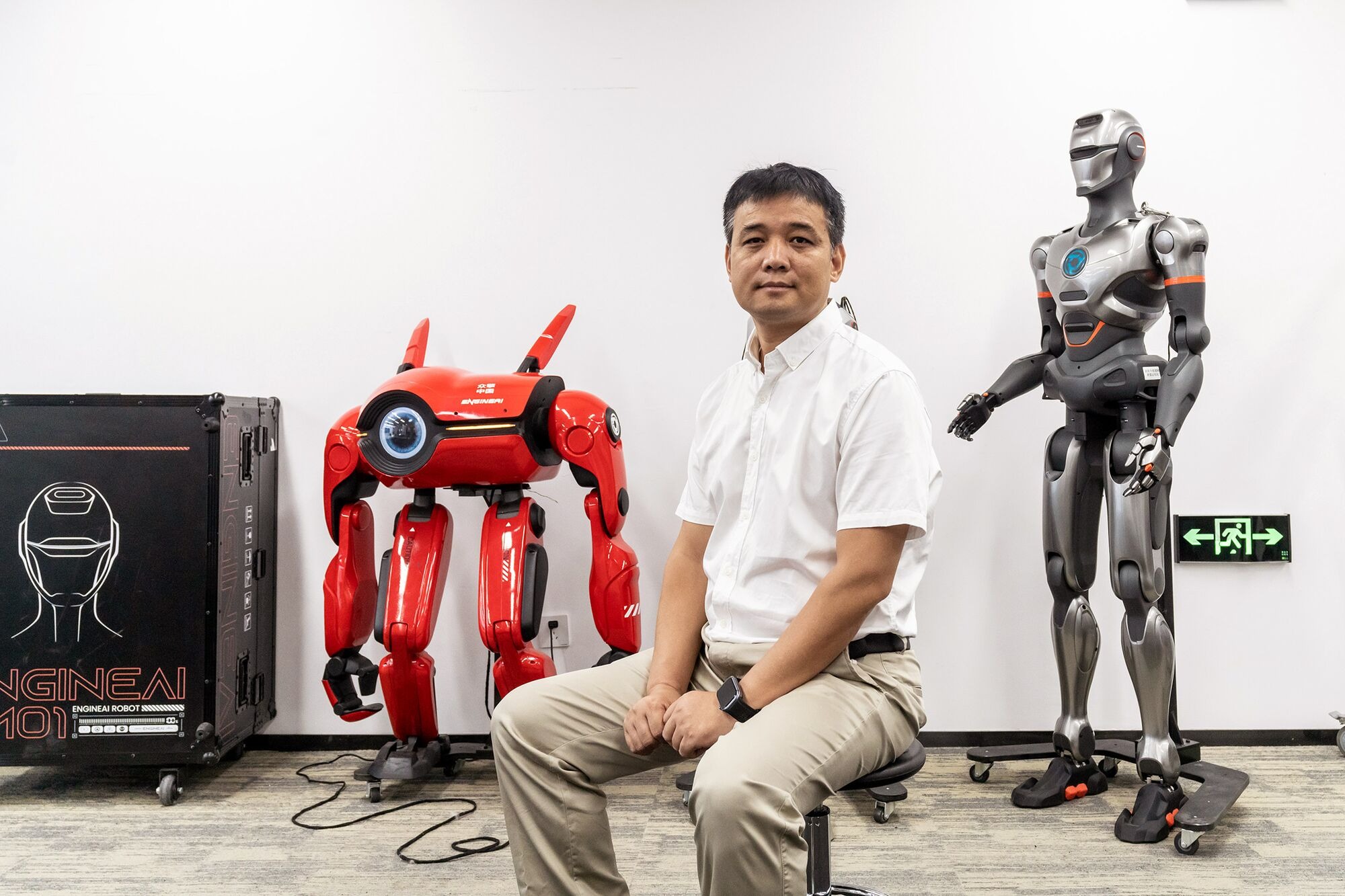
Zhao Tongyang, founder of EngineAI Robotics, with robots in a laboratory
Zhao Tongyang, founder of EngineAI Robotics, with robots in a laboratory · VnEconomy
  • Company: EngineAI Robotics.
  • Founder: Zhao Tongyang.
  • Country: China.
  • Headquarters: Shenzhen.
  • Company founded: 2023.
  • Official T800 unveiling: December 2025.
  • Initial mass-production deliveries: May 2026.

Around 150 engineers participated in the development of the T800. Zhao Tongyang previously worked on humanoid robots at XPeng.

First batch of mass-produced EngineAI T800 robots at the Shenzhen facility
First batch of mass-produced EngineAI T800 robots at the Shenzhen facility · EngineAI / PR Newswire

3. Technical specifications

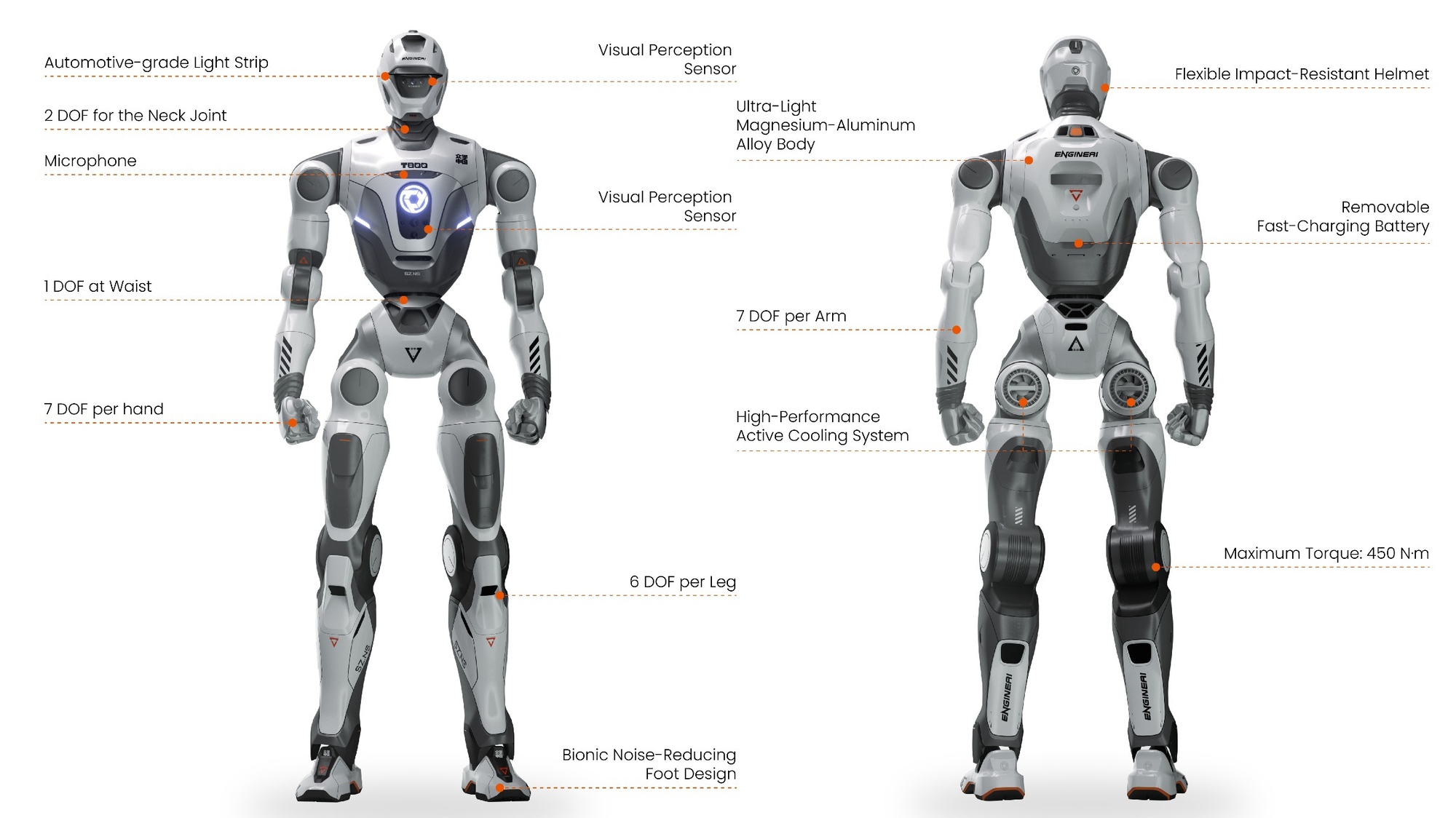
Front and rear T800 hardware component illustration with joints, sensors, helmet and battery
Front and rear T800 hardware component illustration with joints, sensors, helmet and battery · EngineAI imagery via Soha
SpecificationDeveloperPro
Height173 cm173 cm
Weight with battery84.5 kg85.3 kg
Degrees of freedom2543
Joints per arm57
Joints per leg66
Degrees of freedom per handNot supported7
Peak leg joint torque450 Nm450 Nm
Forward walking speed1.5 m/s1.5 m/s
Hardware-supported running speedBelow 3 m/sBelow 3 m/s
Battery1.22 kWh1.22 kWh
Standard runtime2 hours2 hours
Charging time2.5 hours2.5 hours
AI computerJetson AGX OrinJetson AGX Orin
RAM64 GB64 GB
Storage256 GB256 GB

These values come from the October 2026 technical documentation. Pro has 29 body degrees of freedom plus 14 hand degrees of freedom. Runtime depends on the battery and activity. The battery guide separately reports at least three hours of general walking; that figure is not equivalent to the standard two-hour test.

4. How much does the EngineAI T800 cost?

The announced launch price was 180,000 yuan, about US$25,000 at the time. Zetta lists separate prices for its US distributor configurations.

EditionListed price (USD)
T800 Basic$40,499
T800 Open Source$53,999
T800 Pro$62,999
T800 Max$80,799

Shipping, taxes, accessories and technical support may increase the final price. These are distributor listings, not a quotation for delivery to Morocco.

For programming, developing a gait or creating new movements, request the Developer/Open Source or Pro edition and confirm full SDK access before purchasing.

Zetta distributor listing
https://zetta-robotics.com/products/engineai-t800

5. How to buy and order the T800

Contact EngineAI directly or Zetta Robotics for international ordering. Request a quote for the exact hardware configuration and service package.

EngineAI manufacturer purchasing page
https://en.engineai.com.cn/product-purchase.html

Zetta distributor
https://zetta-robotics.com/products/engineai-t800

Choose the editionRequest a quotationConfirm accessories and SDKContract and paymentTransport and customsInstallation and training
Recommended international buying process.

Before paying, confirm warranty, spare parts, delivery to Morocco, software access, support and regulatory requirements in writing.

6. Equipment and tools needed
You also need the official charger, a spare battery, an emergency-stop device and a protected test area. Use a suspension system rated for the robot and follow the manufacturer training.

7. How to start the T800

Only trained personnel should commission the full-size robot. Follow the instructions for the specific purchased version.

  1. Charge the battery with the supplied charger.
  2. Install the battery in the robot.
  3. Secure the robot using an approved and rated suspension system.
  4. Switch on the system according to the purchased model manual.
  5. Connect the remote controller.
  6. Allow the onboard computers to initialize.
  7. Verify motors and sensors.
  8. Activate the approved standing controller.
  9. Check balance before switching to walking.

The battery must be removed for charging. Its nominal voltage is 61.2 V and capacity is 20 Ah. The documentation specifies a separate charger and approximately 2.5 hours to charge. Do not power down an unsupported standing robot; it can fall.

8. How to make the robot walk
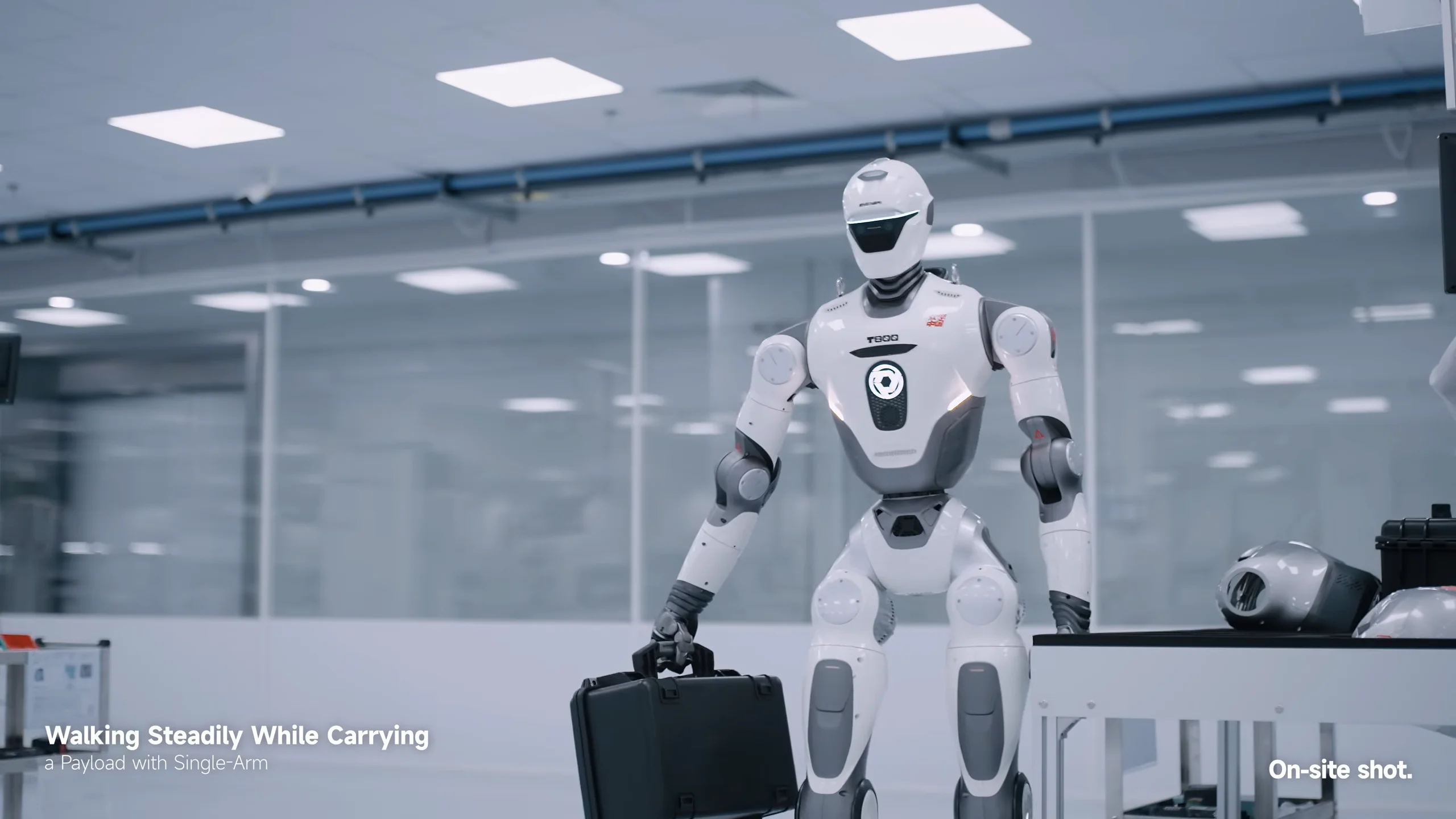
T800 carrying a payload with one arm while walking in a manufacturer demonstration
T800 carrying a payload with one arm while walking in a manufacturer demonstration · EngineAI imagery via Humanoids Daily

EngineAI Native SDK uses a finite state machine to manage motions. Only change states after verifying the delivered model and its configuration.
IdleLB + RBPassiveLB + APD standLB + BLB + D-pad downWalkDanceReturn to PD stand with LB + A
Native SDK state machine. Confirm the delivered model, configuration and permitted transition before any movement.
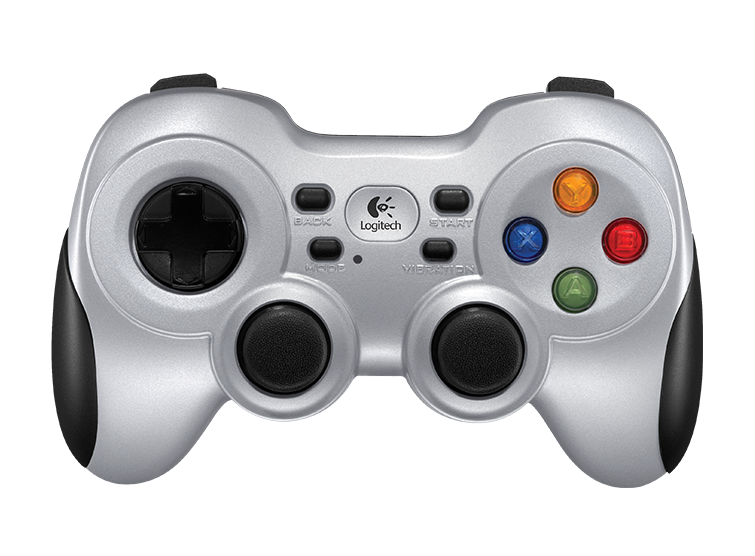
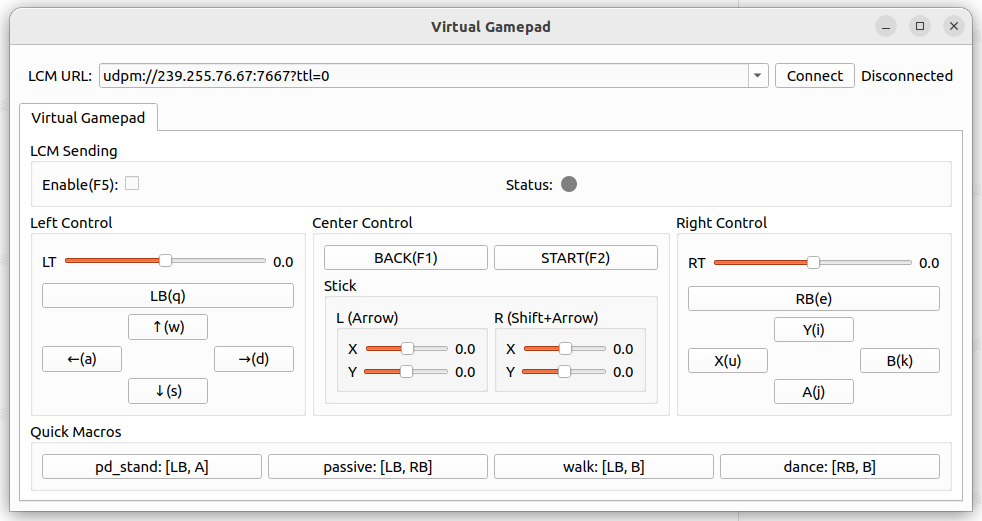
EngineAI Native SDK virtual gamepad interface
EngineAI Native SDK virtual gamepad interface · EngineAI developer documentation
Native SDK gamepad commandFunction
LB + RBPassive state
LB + APD standing state
LB + BWalking mode
Left joystickMovement
LB + AReturn to standing

Begin with small movements on a flat surface with trained supervision. Passive mode may remove active balance control. Never assume an unsupported robot will remain upright in this state. The physical emergency stop and passive software fallback are distinct safety measures.

Forward1.5Reverse0.8Lateral0.5m/s
Maximum published walking speeds. These are specifications, not recommended initial test speeds.

9. How its control system works

The T800 uses two onboard computers. The NVIDIA Jetson AGX Orin 64 GB is intended for vision, perception and AI applications. Nezha participates in motion control and communication with the robot hardware.

Cameras and LiDARIMU and encodersJetson AGX OrinNezhaMotion controllerLeg motorsArm motorsRobotic handsSensor feedback
Simplified functional overview rather than the manufacturer wiring diagram; hands depend on configuration.

This diagram is a simplified functional overview. The published network identifies a Nezha Robot PC and an NVIDIA Jetson AGX Orin AI PC.

10. Which software to use

SoftwarePurpose
Ubuntu 22.04Development operating system
ROS 2 HumbleCommunication and control
EngineAI Native SDKMotion development
PythonProgramming and automation
C++Advanced control and development
MuJoCoPhysics simulation
DockerDevelopment environment
EngineAI Web IDEProgramming and diagnostics
PyTorchModel training
NVIDIA Isaac LabSimulation learning with a compatible model

EngineAI documents ROS 2, the Native SDK, Docker and MuJoCo. Isaac Lab and PyTorch are complementary tools for learning and building your own compatible controllers; they are not confirmed bundled T800 applications.

11. How to install the development environment

Step 1. Install ROS 2 Humble

Install Ubuntu 22.04 on the development computer, then follow the official ROS 2 Humble installation instructions.

ROS 2 Humble installation
https://docs.ros.org/en/humble/Installation.html

Step 2. Download the EngineAI project

git clone https://github.com/engineai-robotics/engineai_ros2_workspace.git

cd engineai_ros2_workspace

Step 3. Configure communication

export ROS_DOMAIN_ID=69

export ROS_LOCALHOST_ONLY=0

export RMW_IMPLEMENTATION=rmw_cyclonedds_cpp

Step 4. Connect the robot

ComputerDocumented IP address
Jetson AGX Orin192.168.0.162
Nezha192.168.0.163

Verify these addresses match your robot configuration and use authorized access.

Step 5. Verify communication

ros2 topic list

This command checks whether communication interfaces are available. Build the workspace using the manufacturer instructions for the supplied SDK version before using motion interfaces.

EngineAI development preparation
https://en.engineai.com.cn/open/docs/t800/03/chapter-0-overview-and-development-preparation-copy

12. How to make the T800 run

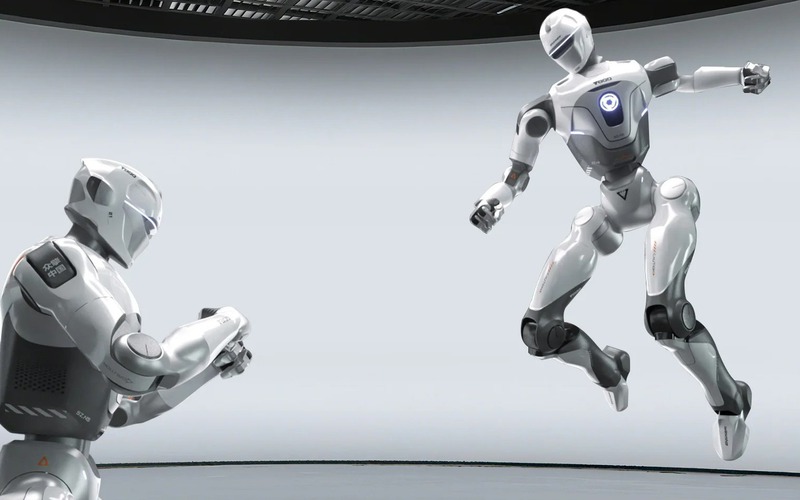
T800 during a dynamic movement demonstration at CES 2026
T800 during a dynamic movement demonstration at CES 2026 · GenK / EngineAI exhibition

The October 2026 documentation specifies hardware-supported running speed below 3 m/s, or below 10.8 km/h. This is a capability limit rather than a guaranteed speed or command.

  1. Acquire the digital model for the exact T800 edition.
  2. Import it into a physics simulator.
  3. Develop or train a locomotion controller.
  4. Test ground contacts and balance.
  5. Check torque, speed and temperature limits.
  6. Validate the controller in simulation.
  7. Conduct physical trials under technical supervision.
Digital modelPhysics simulationReinforcement learning trainingRunning controllerValidationSupervised deployment
A conceptual workflow for developing a running controller.

The public documentation does not provide a universal command to start running at maximum speed. Running depends on the installed controller and firmware.

13. How to make the T800 dance

EngineAI T800 dynamic demonstration at CES 2026 (reference image)
EngineAI T800 dynamic demonstration at CES 2026 (reference image) · GenK / EngineAI exhibition

The Native SDK documents a dance state and an example reinforcement-learning controller.

src/runner/rl_dance_example/

In a compatible Native SDK configuration, LB + D-pad down (CROSS_X_DOWN) requests dancing from the standing state. In the standard ROS 2 interface, the same combination may select lower-body balance instead. Verify the current controller and available transition before use.

Create your own choreography

  1. Record human motion using motion capture.
  2. Retarget the movement to the T800 joints.
  3. Generate timed joint trajectories.
  4. Test the movements in MuJoCo.
  5. Develop the balance controller.
  6. Deploy the choreography only after validation.
Human motion captureMotion retargetingJoint trajectoriesMuJoCo simulationBalance controlValidated T800 dance
Conceptual motion development workflow; actual execution requires a compatible controller and approval.

14. How to program the robot without buying it
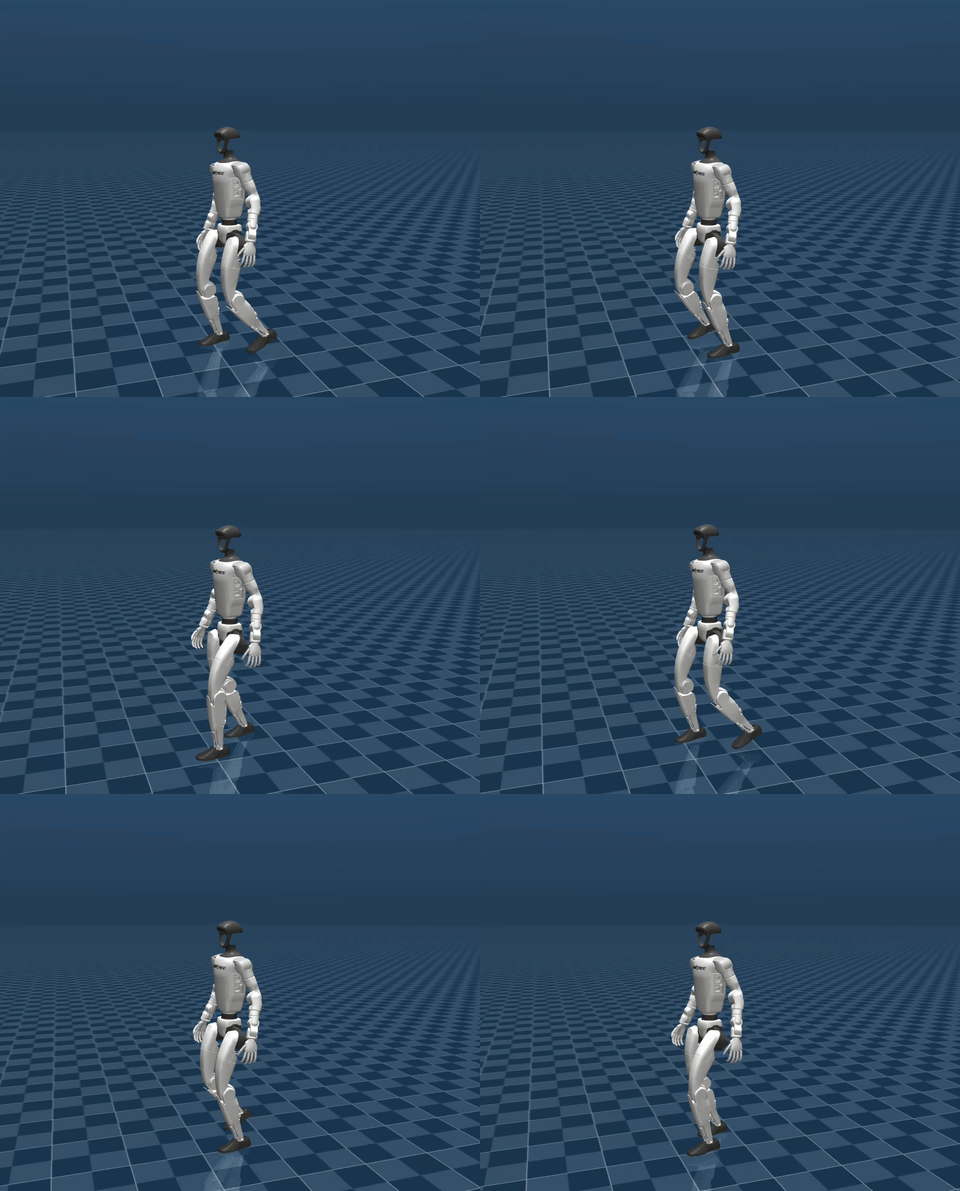
Example of humanoid locomotion in MuJoCo, illustrating the simulation environment
Example of humanoid locomotion in MuJoCo, illustrating the simulation environment · Unitree example, not a T800 simulation

Start with simulation using tools and compatible models provided through the EngineAI development platform. Learn ROS 2, Python and C++, then experiment in MuJoCo before operating a physical humanoid.

For a beginner, simulation is a practical starting point before investing in a physical T800 weighing more than 84 kg.

Technical resources

EngineAI official site
https://en.engineai.com.cn/

T800 technical documentation
https://en.engineai.com.cn/open/docs/t800/t800/about-t800

EngineAI Github
https://github.com/engineai-robotics

ROS 2 Workspace
https://github.com/engineai-robotics/engineai_ros2_workspace

MuJoCo documentation
https://mujoco.readthedocs.io/

Native SDK quick start
https://en.engineai.com.cn/open/docs/t800/04/development-environment-and-quick-start

Additional sources and verification

EngineAI launch announcement
https://en.engineai.com.cn/about-news-media/37.html

T800 specifications and electrical interfaces
https://en.engineai.com.cn/open/docs/t800/t800/robot-specifications-electrical-interfaces

Native SDK source code analysis
https://engineai.com.cn/open/docs/t800/native-sdk/3

Specifications and demonstrations are attributed to their sources. Confirm model, SDK version, firmware and safety procedures with EngineAI before operating the physical robot.

Other models from this manufacturer

How to install the software mentioned on this page

Choose only the tools required for your project. The commands below describe development and simulation setup, not proof of compatibility with a specific physical robot. Match the versions in the original project and test offline before connecting hardware.

Python Windows, macOS, Linux

Install the Python release required by your robot or library. On Windows use the official installer; on Ubuntu use the distribution package. Create a separate virtual environment for each project.

Installation / setup commands

python -m venv .venv
# Windows PowerShell:
.\.venv\Scripts\Activate.ps1
# Linux or macOS:
source .venv/bin/activate

Verify the installation

python --version python -m pip --version

Official instructions: https://www.python.org/downloads/

Git Windows, macOS, Linux

Install Git from the official download page or your package manager. On Ubuntu the commands below install the command-line client; on Windows run Git for Windows.

Installation / setup commands

sudo apt update
sudo apt install git

Verify the installation

git --version

Official instructions: https://git-scm.com/downloads

MuJoCo Windows, macOS, Linux

Create a Python virtual environment and install the official Python package. On macOS use mjpython for the interactive viewer when required.

Installation / setup commands

python -m pip install mujoco

Verify the installation

python -c "import mujoco; print(mujoco.__version__)"

Official instructions: https://mujoco.readthedocs.io/en/stable/python.html

NVIDIA Isaac Lab Supported Linux or Windows configuration

The following is a version-pinned example for Isaac Lab 2.3.1 with Python 3.11. Check the matching Isaac Sim release, supported GPU and operating system. Install the compatible PyTorch build for your computer using the same version's documentation. For other releases, follow their own installation guide.

Installation / setup commands

python -m pip install --upgrade pip
python -m pip install "isaaclab[isaacsim,all]==2.3.1" --extra-index-url https://pypi.nvidia.com

Verify the installation

isaacsim

Official instructions: https://isaac-sim.github.io/IsaacLab/v2.3.1/source/setup/installation/isaaclab_pip_installation.html

ROS 2 (Jazzy example) Ubuntu 24.04 for Jazzy; other distributions have different instructions

On Ubuntu 24.04 first configure the official ROS apt repository using the documented ros2-apt-source procedure. Then install Jazzy desktop. Use the distribution required by your robot; for example Humble normally uses Ubuntu 22.04.

Installation / setup commands

sudo apt update
sudo apt install ros-jazzy-desktop
source /opt/ros/jazzy/setup.bash

Verify the installation

ros2 --help

Official instructions: https://docs.ros.org/en/jazzy/Installation/Ubuntu-Install-Debs.html

PyTorch Windows, Linux, macOS with supported Python

Use the official installation selector for your OS, CPU or CUDA/ROCm version. Run the exact command it produces inside the project's environment. Do not assume that a CPU wheel has GPU support.

Verify the installation

python -c "import torch; print(torch.__version__, torch.cuda.is_available())"

Official instructions: https://pytorch.org/get-started/locally/

Docker Linux, Windows, macOS

Install Docker Engine on Linux or Docker Desktop on a supported desktop platform. For GPU containers, follow the NVIDIA Container Toolkit instructions for the host. Use images and tags specified by the project.

Verify the installation

docker --version docker run --rm hello-world

Official instructions: https://docs.docker.com/get-docker/

Ubuntu PC / virtual machine

Choose the Ubuntu release supported by your robot SDK, ROS or simulator. Download the official ISO or use a supported virtual machine. Back up the computer before installing or changing partitions.

Verify the installation

lsb_release -a

Official instructions: https://ubuntu.com/download/desktop

C++ toolchain Windows, macOS, Linux

On Ubuntu install the compiler and build tools; on Windows install the C++ workload for Visual Studio Build Tools or the toolchain required by the SDK. On macOS use the required Xcode Command Line Tools.

Installation / setup commands

sudo apt update
sudo apt install build-essential

Verify the installation

g++ --version

Official instructions: https://gcc.gnu.org/

Manufacturer SDK / robot software Exact robot model and firmware version

Check whether the manufacturer provides a public SDK or a licensed developer package for this edition. Obtain the matching release and installation manual from the manufacturer. Install its documented dependencies in an isolated environment and run the offline import or simulator check. Do not flash firmware or send motor commands during installation.

Verify the installation

Confirm supported model, OS, SDK and firmware version. If no public installer is documented, request developer access from the manufacturer.

Official sources

Published specifications and demonstrations are manufacturer claims, not independent comparative tests.

  • T800 English product configurationsChecked 8 October 2026
  • EngineAI company informationChecked 8 October 2026
Browse the robot directory ↗

T800: buying, commissioning and lifetime support

Use this ownership checklist alongside the detailed technical guide. Product claims and original profile data are distinct from the suggested acceptance tests. Additional official sources consulted on 24 November 2026 where available.

ItemExisting configuration record
ConfigurationPro edition
Commercial statusSales inquiry
Price and ordering recordThe manufacturer accepts purchase inquiries by configuration. A public Pro price and firm delivery date are not provided.
Published runtime3–5 h; Pro table estimate. The overview separately advertises four hours; workload is unspecified.
Actuated joints43 stated; breakdown conflicts; Pro headline is 29 body + 14 hand. The component rows sum to 30 body + 14 hand. Do not use this as a reconciled count.

Where to buy and what the price includes

Request a quotation identifying the exact T800 edition, optional hardware, developer access and charger. Do not carry PM01 price or specs into this model.

Official sales / product information

Request an itemized landed cost: robot and options, charger and spare packs, shipping, import duties, commissioning, software subscription, staff training, spare parts and service. Confirm currency, region, warranty exclusions and acceptance terms in writing.

Installation, software and first commissioning

EngineAI publishes an open developer portal with a T800 guide. Its connection example includes PM01-EDU-specific hardware details, so validate the model before using native SDK or ROS 2 examples.

Operational signal path (conceptual); not a manufacturer circuit diagram.
  1. Sensors and joint feedback
  2. State estimation / task control
  3. Approved motion controller
  4. Actuators and end effector
  5. Measured task result

Feedback, fault detection and the approved stop function constrain the command path.

On delivery, match serial number, options and manual; inspect for shipping damage, prepare the manufacturer-approved workspace, verify stop functions with the installer, connect only the documented controller and establish a read-only diagnostic baseline. Perform the first motion under manufacturer supervision where required.

Firmware and software updates

Match T800 release, URDF and SDK version; verify read-only telemetry before enabling any motion.

Official documentation / releases

Before changing versions, save calibration, configuration, task scripts and logs where export is supported. Review compatibility and recovery policy, schedule downtime, maintain the required power and network conditions, and test the same approved task after the update. A downgrade is only appropriate if supported by the vendor.

Battery, charging and usable service life

Ask for the exact pack specifications, allowable temperature range, charge procedure and replacement quote for your edition.

Official power or product record

Battery cycle life and robot service life are different. Equivalent full cycles (EFC) can be estimated as cumulative discharged energy (Wh) divided by initial usable pack energy (Wh). State of health (SOH) is measured usable capacity divided by baseline usable capacity × 100%, under comparable conditions. Example only: 1,800 Wh discharged from a 600 Wh reference pack equals 3 EFC; neither number is a specification for this robot. Ask for the manufacturer’s cycle rating, temperature limits, capacity-retention criterion and warranty. Do not use an arbitrary percentage as a replacement threshold.

Maintenance and common failure checks

WhenInspection and evidence
Before operationInspect high-load leg actuators after demanding tests and record tracking errors, thermal alarms and mechanical play.
After a fault or impactDo not restart a damaged robot. Capture fault code, timestamp, joint feedback and power state; have the vendor identify the cause before clearing faults.
After software or parts changeRecord versions and replaced part serials; compare the same approved test with the earlier baseline. Stop on new errors or unexpected movement.
At manufacturer service intervalsUse the documented interval and authorized service procedures. No universal calendar or lubricant is assumed.
At end of serviceAsk about spare-part availability, data removal, battery take-back and local electronics recycling.

What is still missing before purchase

Confirm the battery cycle rating, warranty and service life for this exact serial-numbered configuration, along with spare-part lead times, repair turnaround, supported software versions and end-of-support dates. These are procurement questions, not invented published values. Record the actual task success rate, intervention count and productive hours in your acceptance trial.