Published specifications for L7
- Height
- 171 cmChinese summary labels the height in cm. The English summary has a conflicting unit label.
- Actuated joints
- 55 statedPublished count; the summary does not define which hand joints it includes.
- Handling load
- 20 kg across both armsDual-arm load. Duration, posture and per-arm allocation are not specified.
Not established for this configuration: Mass, Battery runtime.
Control and operating conditions
RobotEra links its wider product line to ERA-42 research. The retrieved L7 summary does not define a supplied autonomy package, OS or public ROS 2 interface.
Ordering and access
The manufacturer provides a purchase inquiry. Price, delivered hand configuration and schedule require a quote.
Manufacturer and development
ROBOTERA was founded in Beijing in August 2023 and incubated at Tsinghua University’s Institute for Interdisciplinary Information Sciences. Founder Chen Jianyu is an assistant professor and doctoral supervisor at Tsinghua.
Questions specific to RobotEra L7
What should a dual-arm trial specify?
Request the joint map, end-effector configuration, SDK rights and load-versus-reach curve. Record accepted placements, failures and operator resets under varied object positions. Data collection is not an unattended production benchmark.
RobotEra L7: Complete buying, setup and programming guide
A practical English guide for buyers, robotics engineers and beginners. The operating details below refer to the manufacturer's L7 user manual v1.9.0. Confirm the hardware and software version of your own robot before trying any motion.
1. What is RobotEra L7?
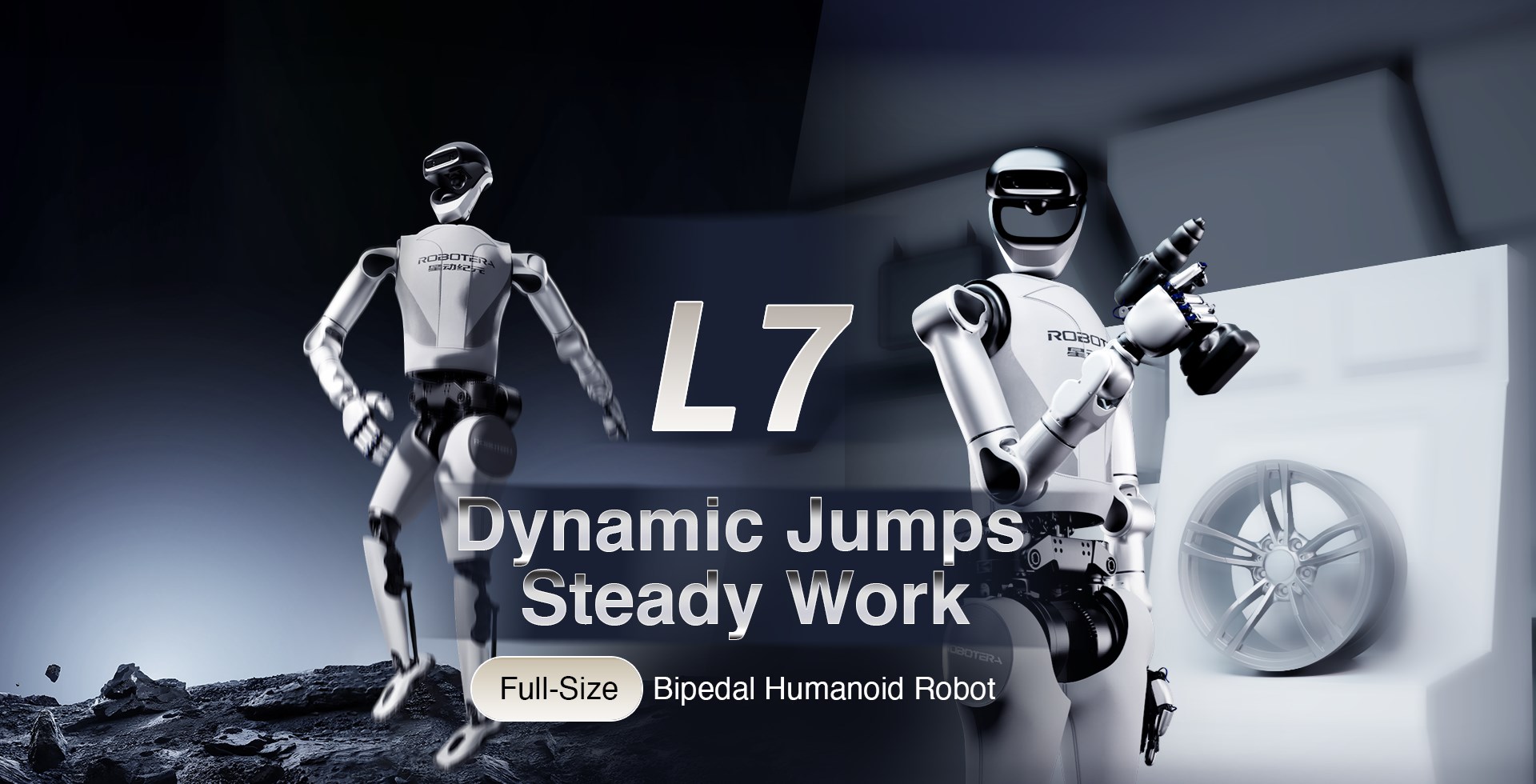
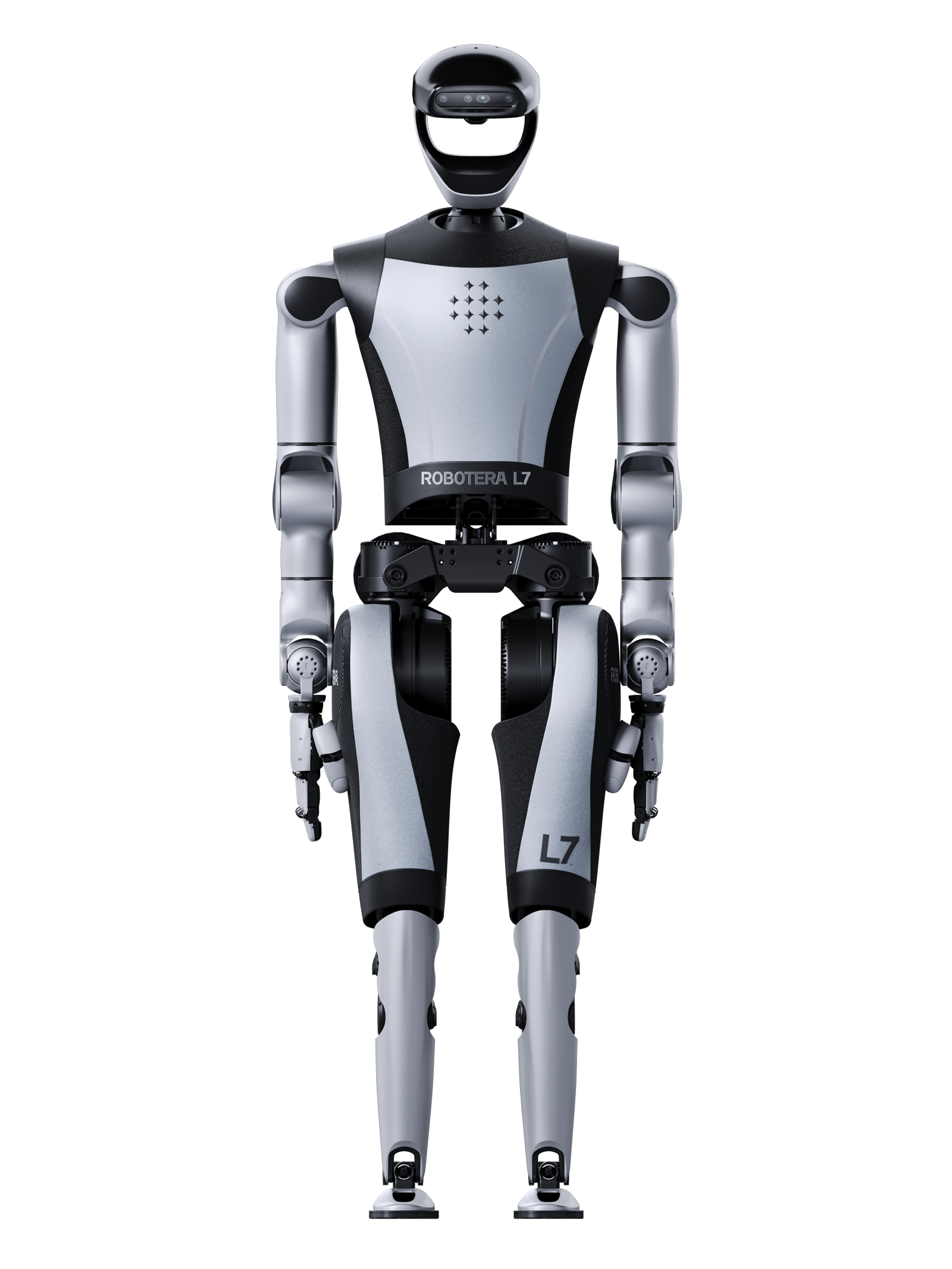
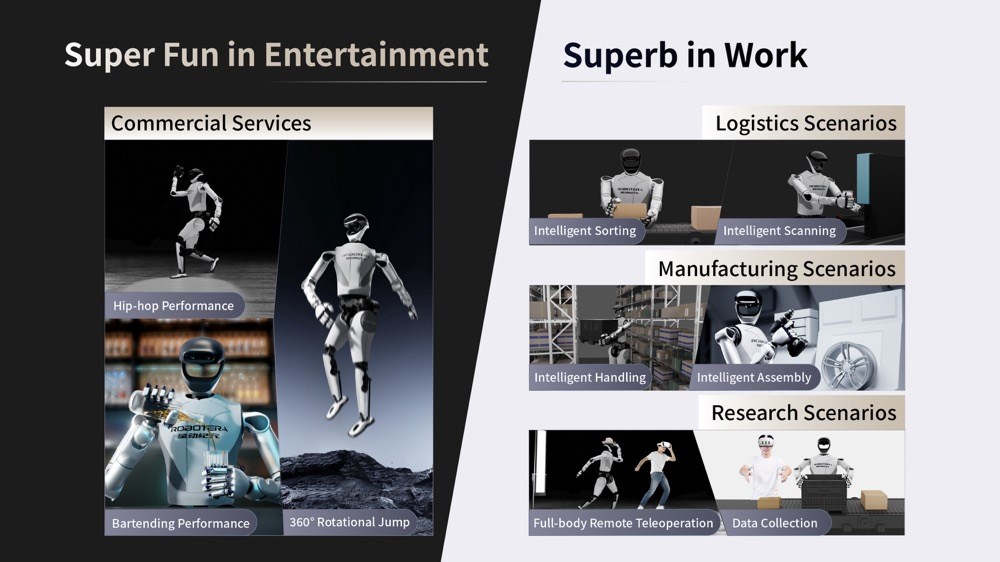
RobotEra L7 is a full-size humanoid made in China for robotics research, collecting training data, handling objects and industrial applications. It is 1.71 m tall when rounded, has articulated legs and arms and supports a pair of dexterous hands. The full configuration has 55 degrees of freedom. The company reports outdoor running at 4 m/s and has demonstrated dance, sorting, barcode scanning and screw fastening.
The L7 can be operated using a controller, a local management interface or developer software. Researchers can study walking, manipulation and teleoperation on the same platform. A demonstration does not establish that a robot can repeat every task autonomously in a factory.
2. Who created the L7?
RobotEra Technology was founded in August 2023 in Beijing. Its founder, Jianyu Chen, is a robotics researcher at Tsinghua University's Institute for Interdisciplinary Information Sciences. He studied at Tsinghua and completed his PhD at UC Berkeley in 2020. His laboratory works on robot control, reinforcement learning and embodied AI. RobotEra introduced the L7 in July 2025.
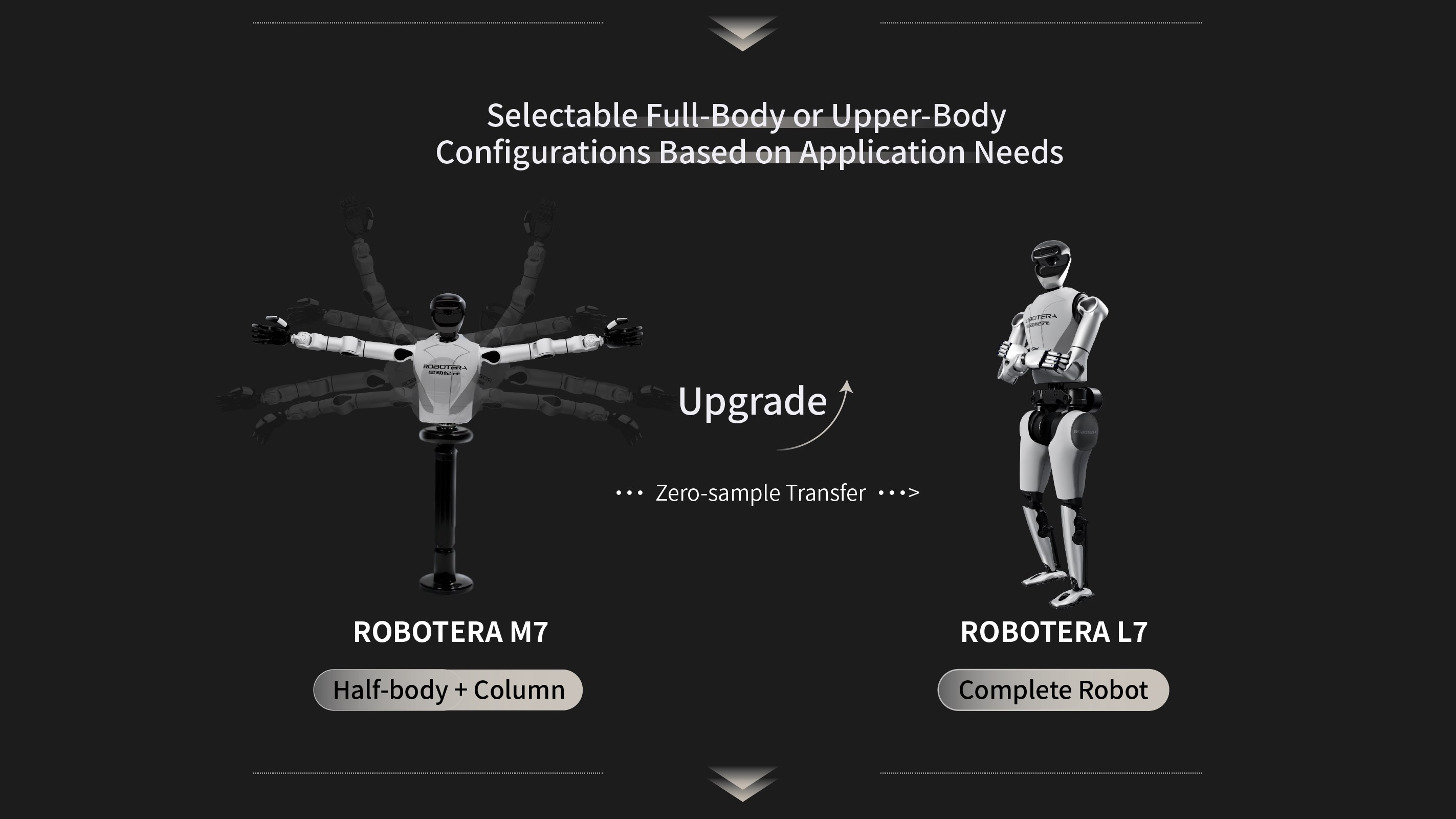
The same company develops STAR1, the Q5 wheeled humanoid, M7 upper-body platform and the XHAND 1 robotic hand. L7 is the full-size biped in that product family.

3. Technical specifications
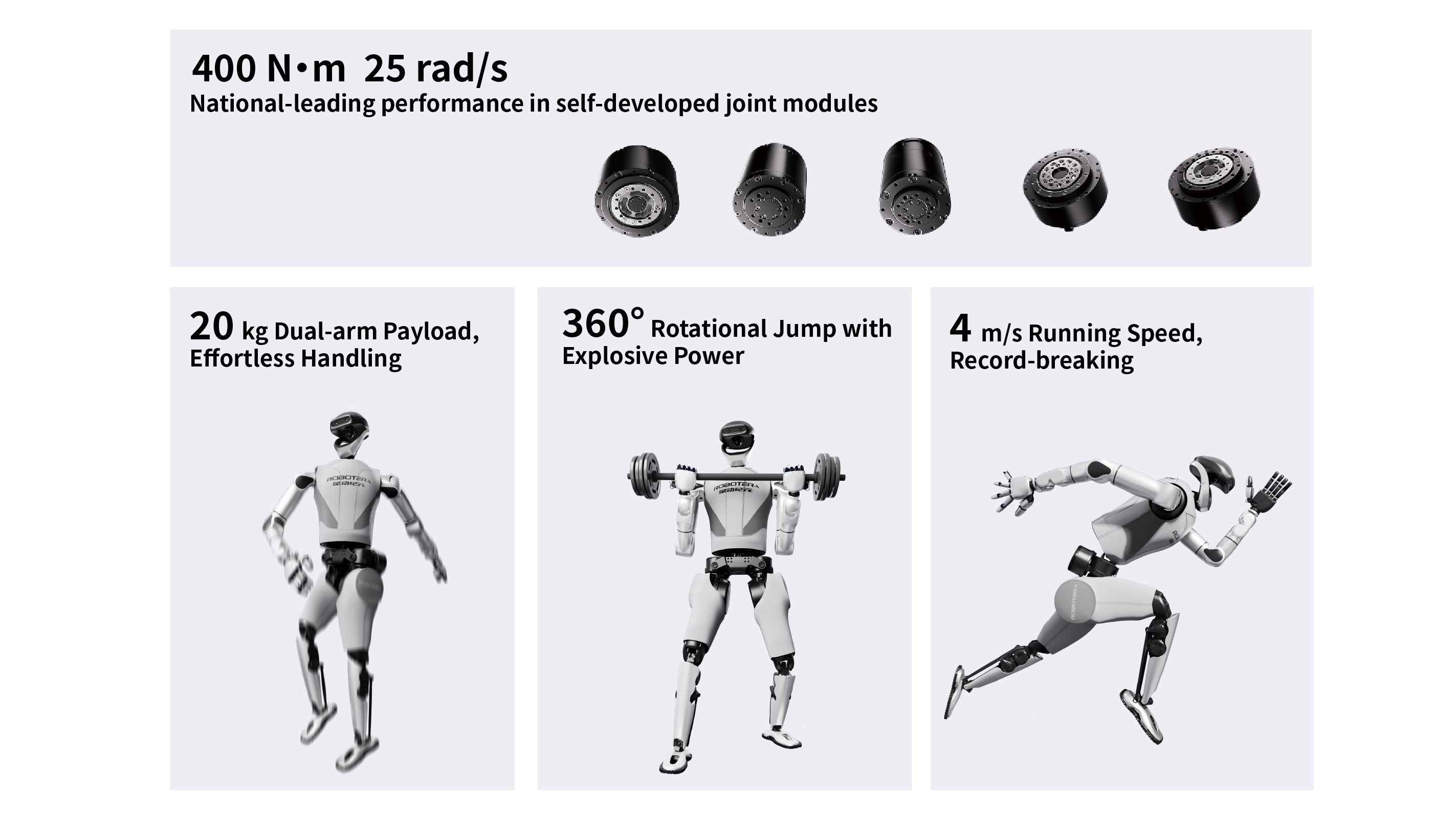
The following figures come from RobotEra's L7 product manual v1.9.0. They add detail to the earlier product-summary figures above; actual configurations can differ. The manual lists approximately 67 kg, while the 2025 launch materials referred to 65 kg. The manual also gives a 10 kg single-arm rating, which was absent from the earlier summary.
| Specification | Published figure |
|---|---|
| Standing height | 1706 mm (170.6 cm) |
| Width × depth | 580 × 320 mm |
| Weight | Approximately 67 kg |
| Body joints | 31 DoF without hands |
| Combined joint count | 55 DoF with two 12-DoF hands |
| Single-arm payload | 10 kg |
| Combined dual-arm payload | 20 kg in product summary |
| Knee peak torque | 400 N·m |
| Knee peak angular speed | 25 rad/s |
| Running speed | 4 m/s reported; 6 m/s theoretical |
| Battery | 57.6 V, 15 Ah, 864 Wh |
| Sensors | Depth camera and voice module |
| Connectivity | Ethernet, USB 3.0, USB-C, Wi-Fi 6 and 4G |
| Additional AI computer | Optional NVIDIA Jetson AGX Orin |
| Battery endurance | No verified universal runtime in the cited manual figures |
Peak torque does not indicate continuous torque or the load that the robot can carry throughout a complete shift. Ask for the payload versus reach curve and duty-cycle limits.
4. Joint architecture and degrees of freedom
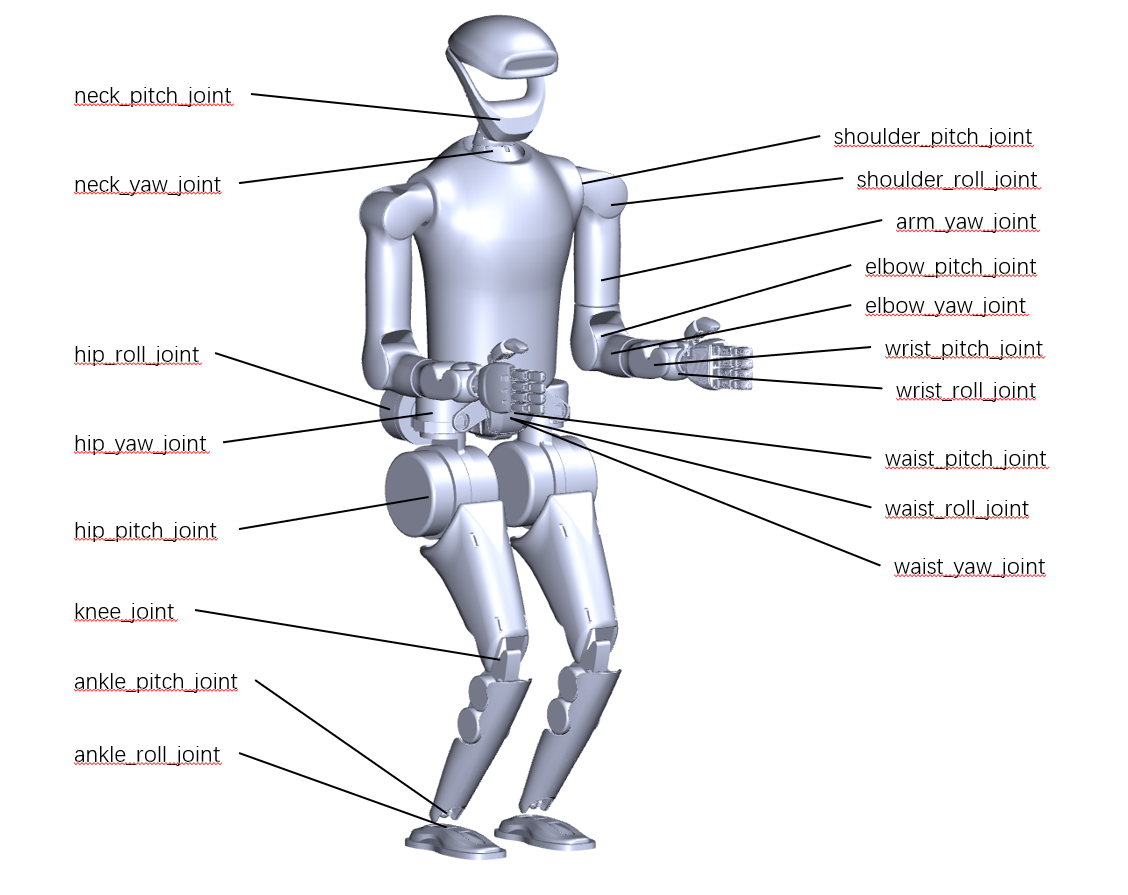
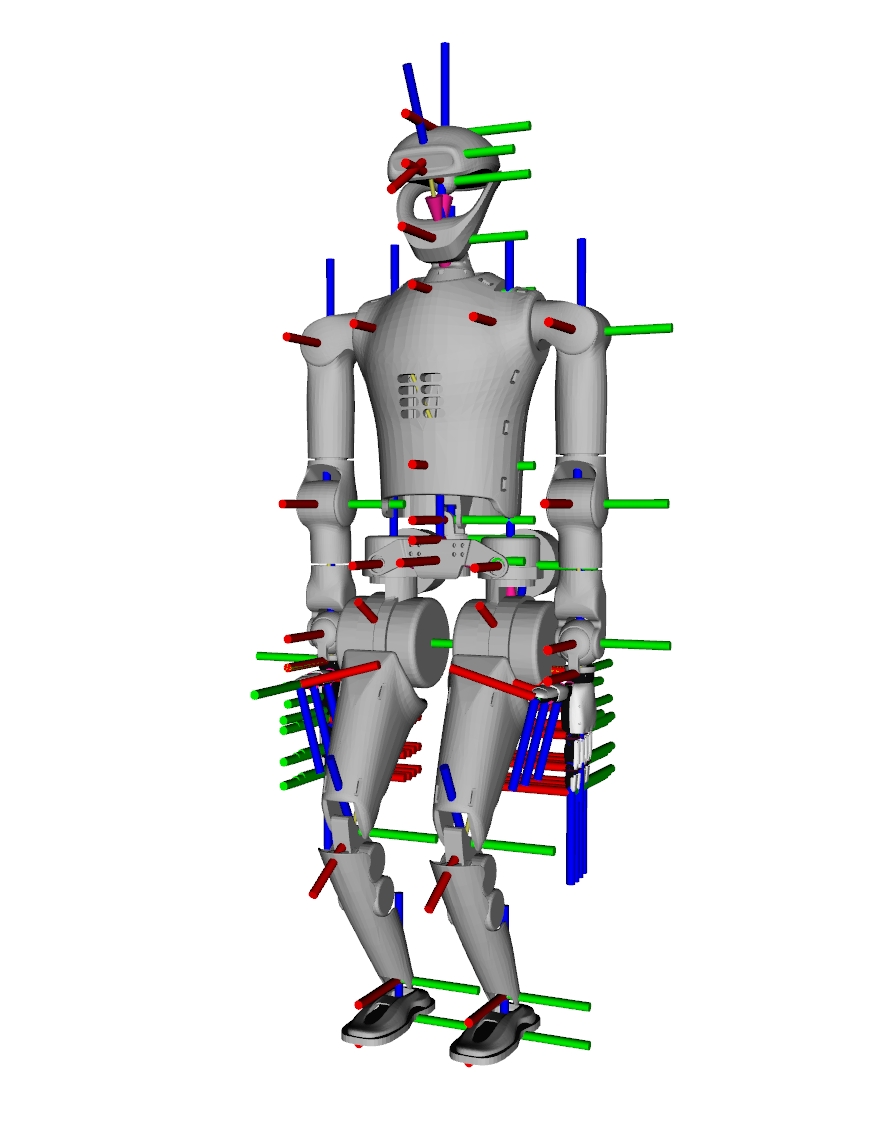
With the full hand configuration, L7 has 31 body joints and 24 active finger joints. The following distribution shows the contribution of each part.
| Subsystem | Per side | Total |
|---|---|---|
| Arms | 7 | 14 |
| Legs | 6 | 12 |
| Waist | Not disclosed | 3 |
| Neck | Not disclosed | 2 |
| Hands | 12 | 24 |
| Total | 55 |
5. The XHAND 1 dexterous hands
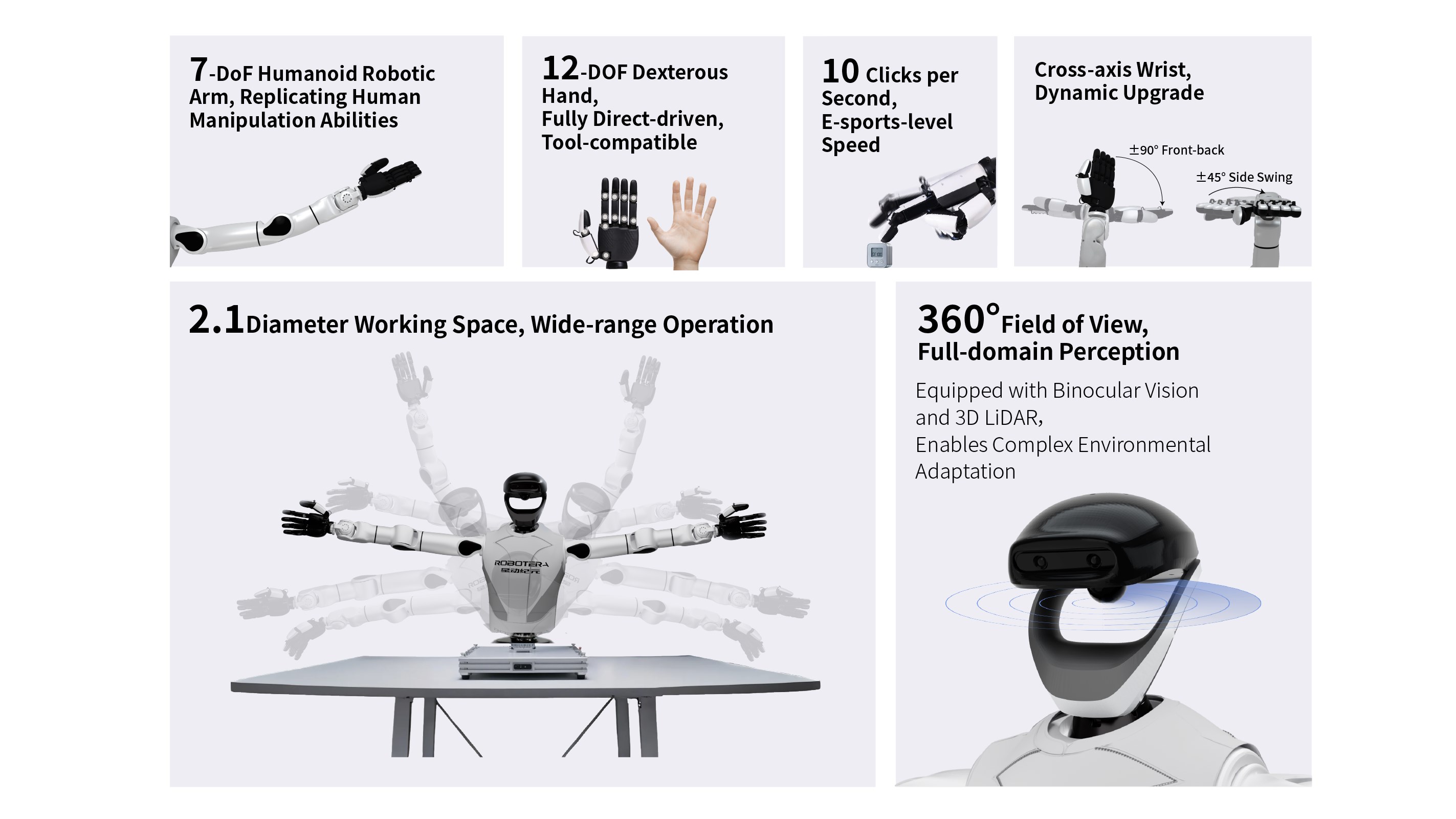
Each XHAND 1 has five fingers and 12 actively controlled degrees of freedom. Its direct-drive design lets researchers command individual finger joints. Some versions include tactile sensing. That gives the robot feedback about contact during grasping, rather than relying on camera images alone.
With two hands, the L7 can study coordinated grasping, object transfer, fine handling and collection of human demonstration data. Confirm the exact hand model and sensor option before buying. Dexterity and force limits depend on the grasp and object geometry.
6. Which L7 version should you buy?
RobotEra's manual distinguishes four main configurations. Pro models include the dexterous hands, and the plus models include the optional Jetson module. Tactile sensing is available in specific XHAND codes.
| Version | XHAND | Jetson AGX Orin | Best fit |
|---|---|---|---|
| L7 SE | No | No | Body locomotion and basic research |
| L7 SE+ | No | Yes | Locomotion and onboard AI research |
| L7 Pro | Yes | No | Dexterous manipulation |
| L7 Pro+ | Yes | Yes | Full-body robotics, perception and AI |
For tactile sensing, the manual lists XT configurations with the sensor included and XN configurations without it. Request the ERP model and complete hardware list on the quotation. Pro+ is the most complete of these configurations for vision and manipulation work, but the software and support terms still need confirmation.
7. How much does RobotEra L7 cost?
AIFITLAB publicly listed the RobotEra L7 at US$100,000 and on backorder when checked. This is a reseller's advertised price, not a fixed official price for every L7 version. The actual manufacturer quote may depend on the computer, hands, tactile options, spare parts and commissioning.
Shipping, import duties, taxes, insurance and technical support may be additional. Obtain an itemized written offer before paying and confirm the lead time.
| Cost item | What to verify |
|---|---|
| Robot | Exact model and base price |
| Hands and AI module | Included or optional |
| Shipping | Destination and insurance |
| Import | Duties and local taxes |
| Support | Training, warranty and repairs |
8. How to order an L7
Contact RobotEra's commercial team at MKT@robotera.com. Describe your intended use, whether you need XHAND and tactile sensing, whether you require Jetson AGX Orin and whether you intend to use ROS 2 or VR. Ask for a quote for the exact L7 configuration.
- Contact sales and describe the use case
- Select SE, SE+, Pro or Pro+
- Receive a detailed quotation
- Confirm delivery, warranty and developer support
- Arrange commissioning and training
For delivery to Morocco, provide the destination city and ask who handles import paperwork, customs, freight and spare-parts support. Confirm whether a charger, battery, controller, emergency-stop remote and suspension equipment are included.
Example request: Hello RobotEra team. I am interested in purchasing one L7 Pro+ with XHAND tactile sensing. Please send me the price, delivery lead time, available software, training and shipping options to Morocco.
9. Equipment needed before delivery
Prepare a dedicated test space before the delivery arrives. For basic use, the necessary equipment is the robot, the approved battery and charger, its controller, emergency-stop remote and the manufacturer-recommended suspension or lifting fixture. A computer and Ethernet or Wi-Fi connection are needed for developer work.
| Equipment | Purpose |
|---|---|
| RobotEra gamepad | Basic movement and selected actions |
| Suspension fixture / hoist | Support during commissioning and risky tests |
| Approved battery and charger | Power and charging |
| Emergency-stop remote | Stop actuation in an emergency |
| Ubuntu development PC | ROS 2, SDK and diagnostics |
| Ethernet cable / Wi-Fi | Local communication |
| NVIDIA Jetson AGX Orin (optional) | Onboard AI inference |
| Meta Quest VR headset (optional) | Human-guided teleoperation |
| Clear supervised test space | Safety during movement |
| Internet access when needed | Software updates and setup |
10. Onboard computers and AI processing
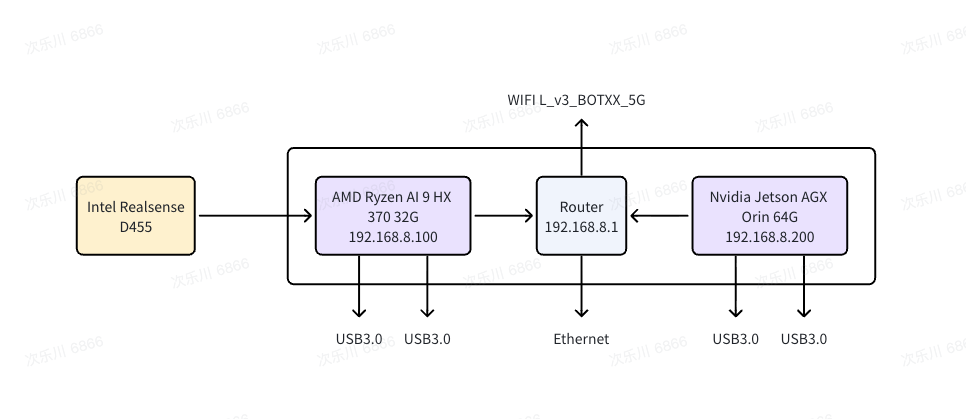
The main computing unit described in the manual is the AMD Ryzen AI 9 HX 370 with 12 CPU cores, 32 GB of memory and a 1 TB SSD. The manual lists 80 TOPS for the x86 platform. The optional NVIDIA Jetson AGX Orin module provides 64 GB of memory and up to 275 TOPS according to the documented configuration.
The robot's onboard computer handles coordination and data exchange with the robot hardware. The additional Jetson is useful when running vision or neural-policy workloads locally. Check the installed compute module and firmware before configuring a project.
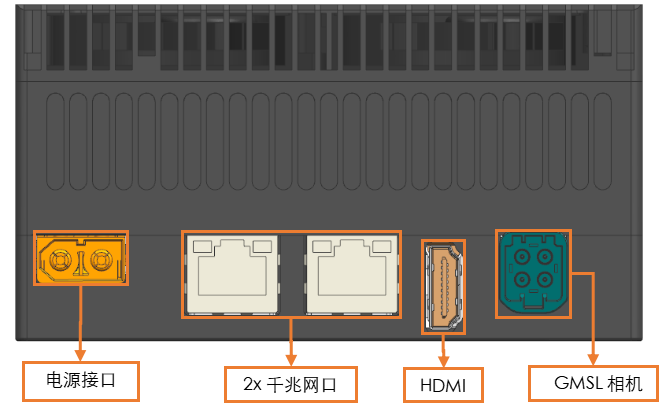
11. How to start and initialize the robot
Initial operation should be done with the manufacturer-approved suspension rig and a trained operator. Inspect the robot, power system and connectors before attempting any motor action. Turn on the robot as described for its delivered version. Connect the controller using its home button and check the steady white connection indicator.
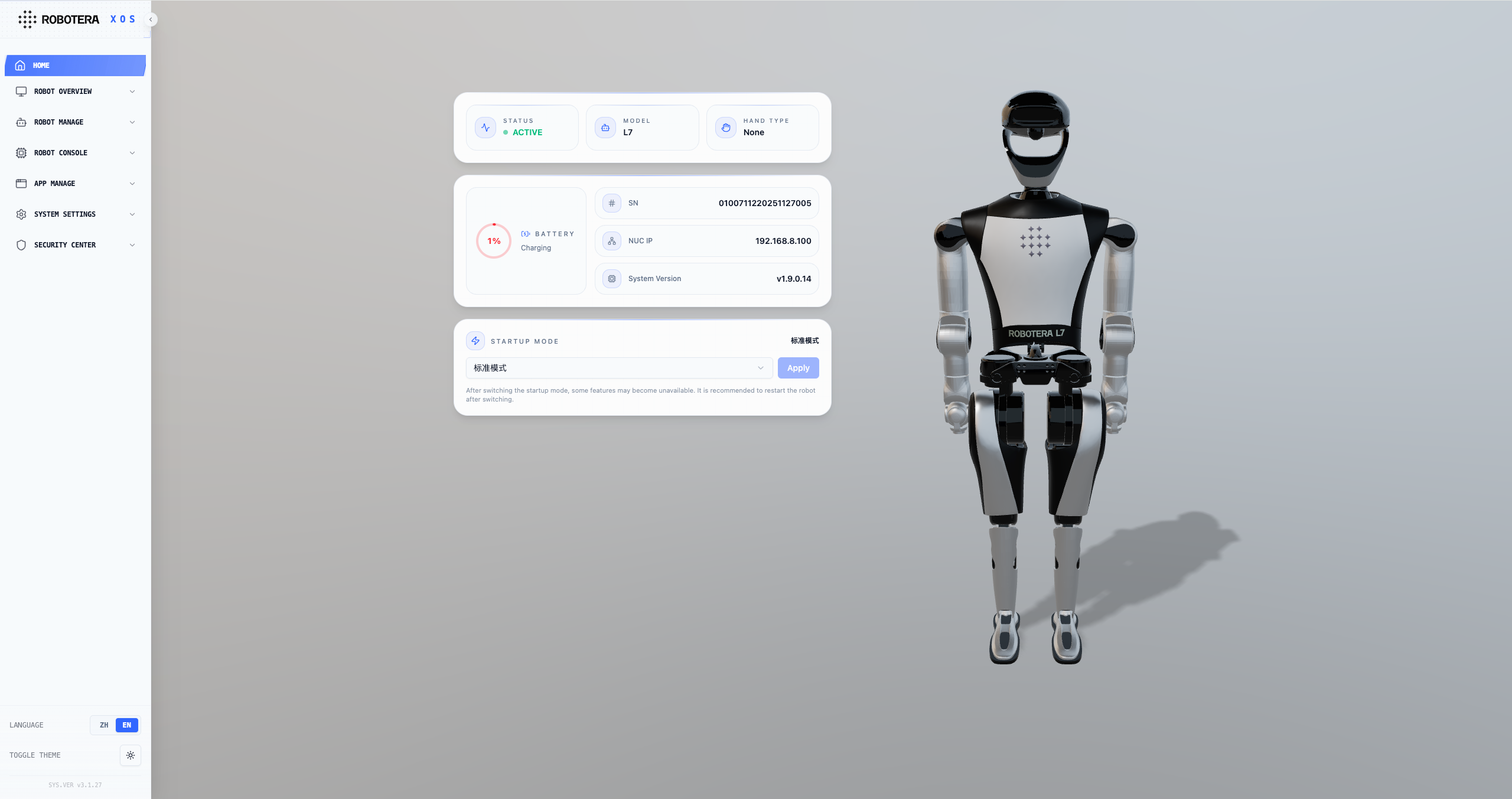
Open XOS and look at the system state, battery and error messages. Wait for the normal startup procedure to finish; do not request movement until XOS indicates ACTIVE and the manufacturer-approved commissioning procedure is complete. If the robot enters ERROR, leave it supported and resolve the fault with the manual or support team.
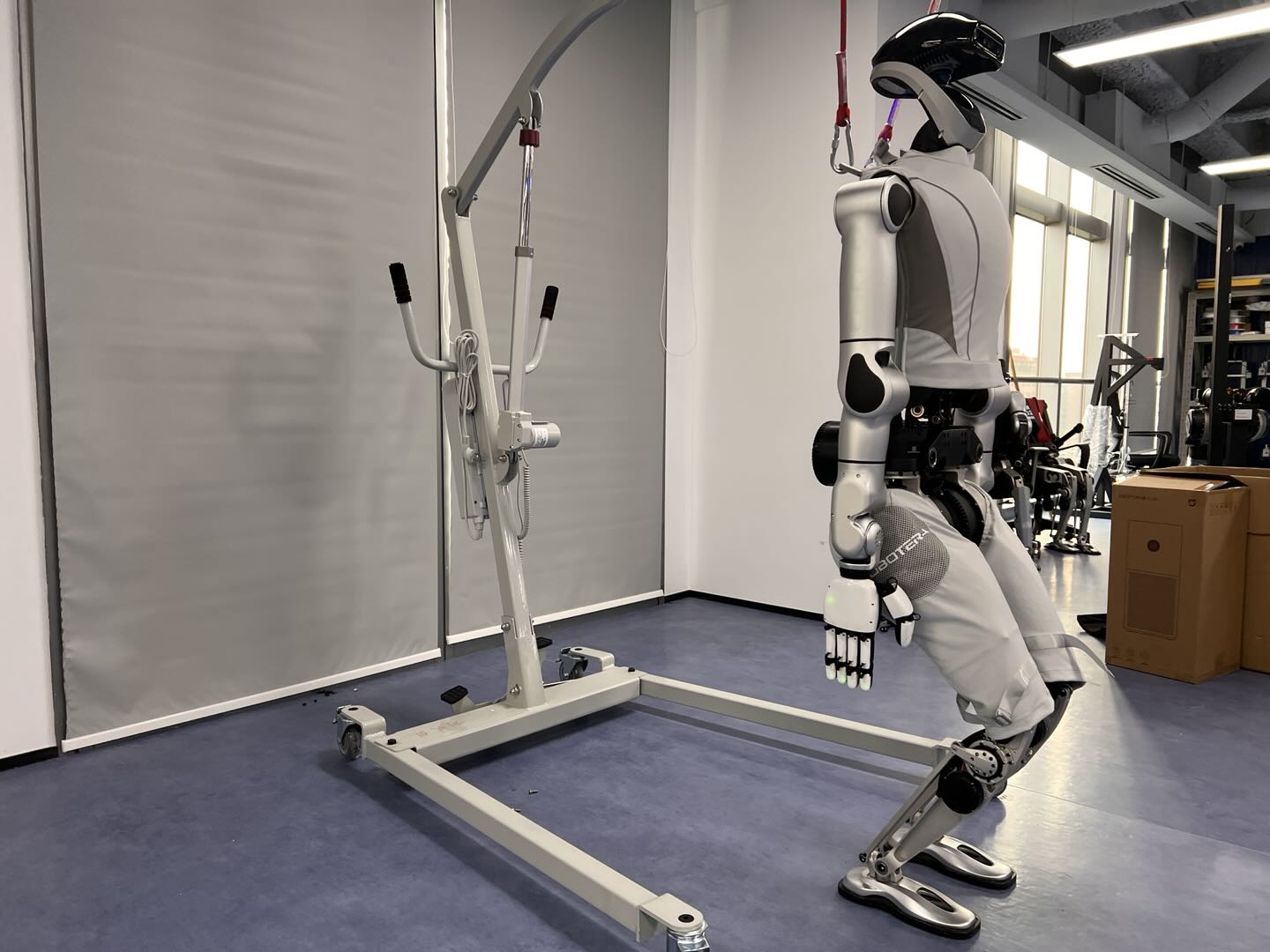
- Inspect hardware and secure suspension
- Power on and connect controller
- Check XOS state, battery and faults
- Wait for ACTIVE state
- Test low-speed movement with supervision
| XOS state | Meaning |
|---|---|
| INIT | Power-on initialization |
| IDLE | Hardware connection stage |
| READY | Initialization stage |
| ACTIVE | System available for tasks |
| ERROR | Fault; diagnose before continuing |
12. Connect to XOS and configure the network
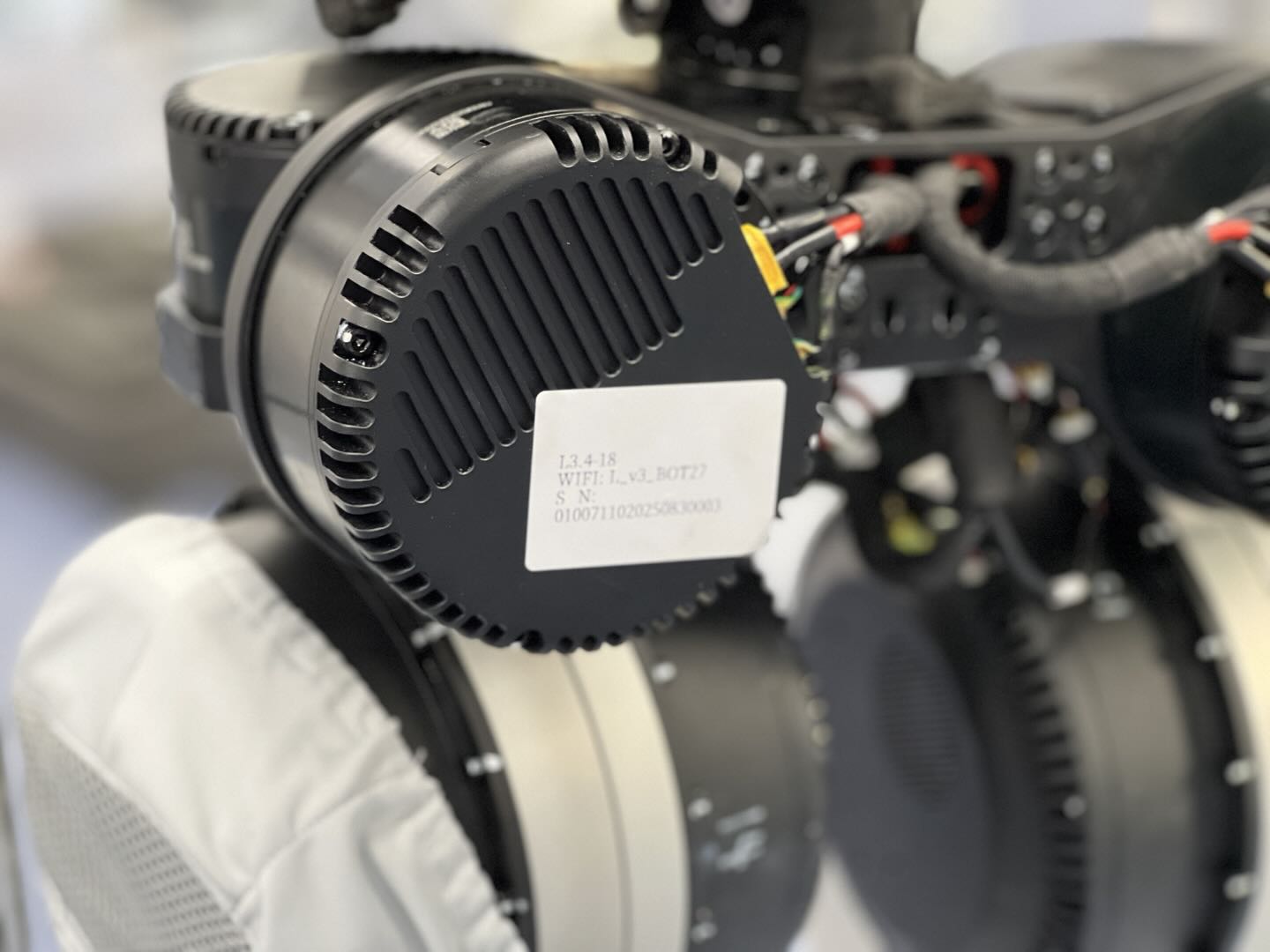
Connect your computer to the robot over Ethernet or its local Wi-Fi. The manual identifies the Wi-Fi network using the pattern L_v3_BOTXX; find the matching label on your unit. In your browser, enter the local address http://192.168.8.100:1888 to open XOS.
Set an access password and configure two-factor authentication. The dashboard presents model information, battery state, software and firmware details, computing resources, application and error information. Keep the robot on a secured local network and avoid exposing the management interface to the public internet.
13. How to make L7 walk
In the normal controller workflow, the robot should already be in ACTIVE state. Use the connected controller and press LB + A to select remote-control mode. Start on a flat, unobstructed surface. Move the joystick gradually and use the lowest available motion speed during initial tests.
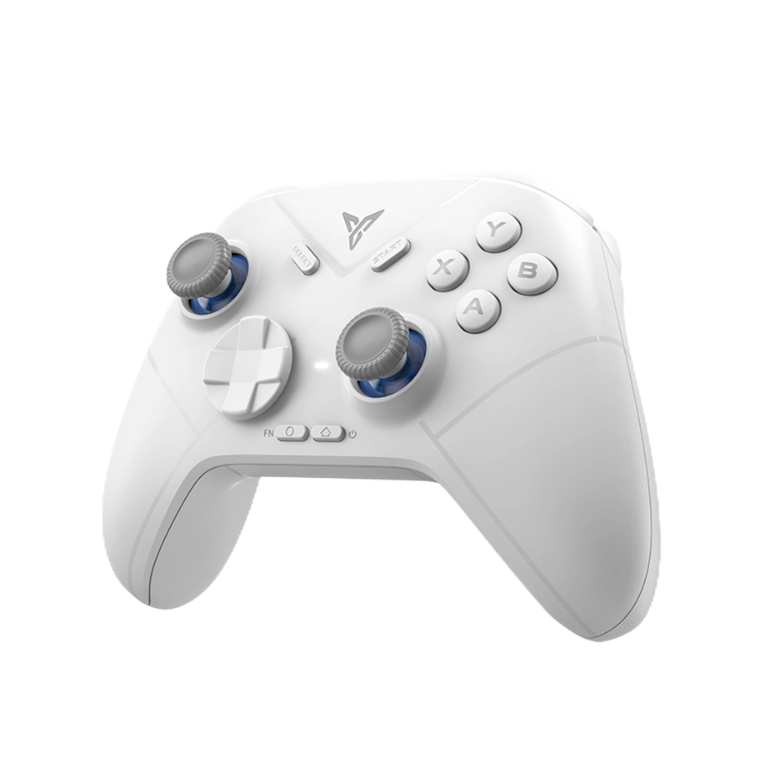
| Control | Function |
|---|---|
| LB + A | Enter remote-control mode |
| Left stick Y axis | Forward and backward |
| Left stick X axis | Sideways translation |
| Right stick X axis | Turn left or right |
| Y | Increase standing height |
| X | Reduce standing height |
Use the manufacturer's supported stopping procedure before changing modes. A walking demonstration should be supervised with the emergency-stop equipment ready and an exclusion zone around the robot.
14. How to make L7 run
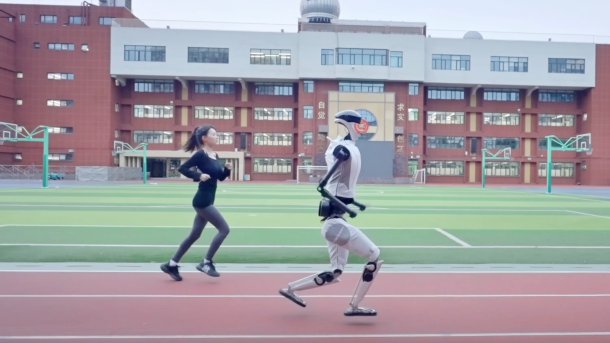
RobotEra reports running at up to 4 m/s outdoors, equivalent to 14.4 km/h. The v1.9.0 manual separately states a theoretical maximum of 6 m/s (21.6 km/h). The second number is not a confirmed real-world running result.
Running depends on a trained locomotion controller, IMU feedback, foot placement, coordinated joint motion and motor response. A higher velocity command alone cannot guarantee stable running. The manual does not give a universal gamepad shortcut for its top-speed demonstrations. Ask for the compatible running policy and perform progressive speed tests in a supervised facility.
- Requested velocity
- Locomotion policy and balance estimate
- Joint commands and foot placement
- Sensor feedback to controller
15. How to make L7 dance
RobotEra has shown the L7 performing dance routines. For a basic recorded action, XOS provides an action-management interface. Upload a compatible recording, configure its playback and optionally associate the recorded motion with audio or a supported controller key combination. Play only actions approved for the current body and software version.
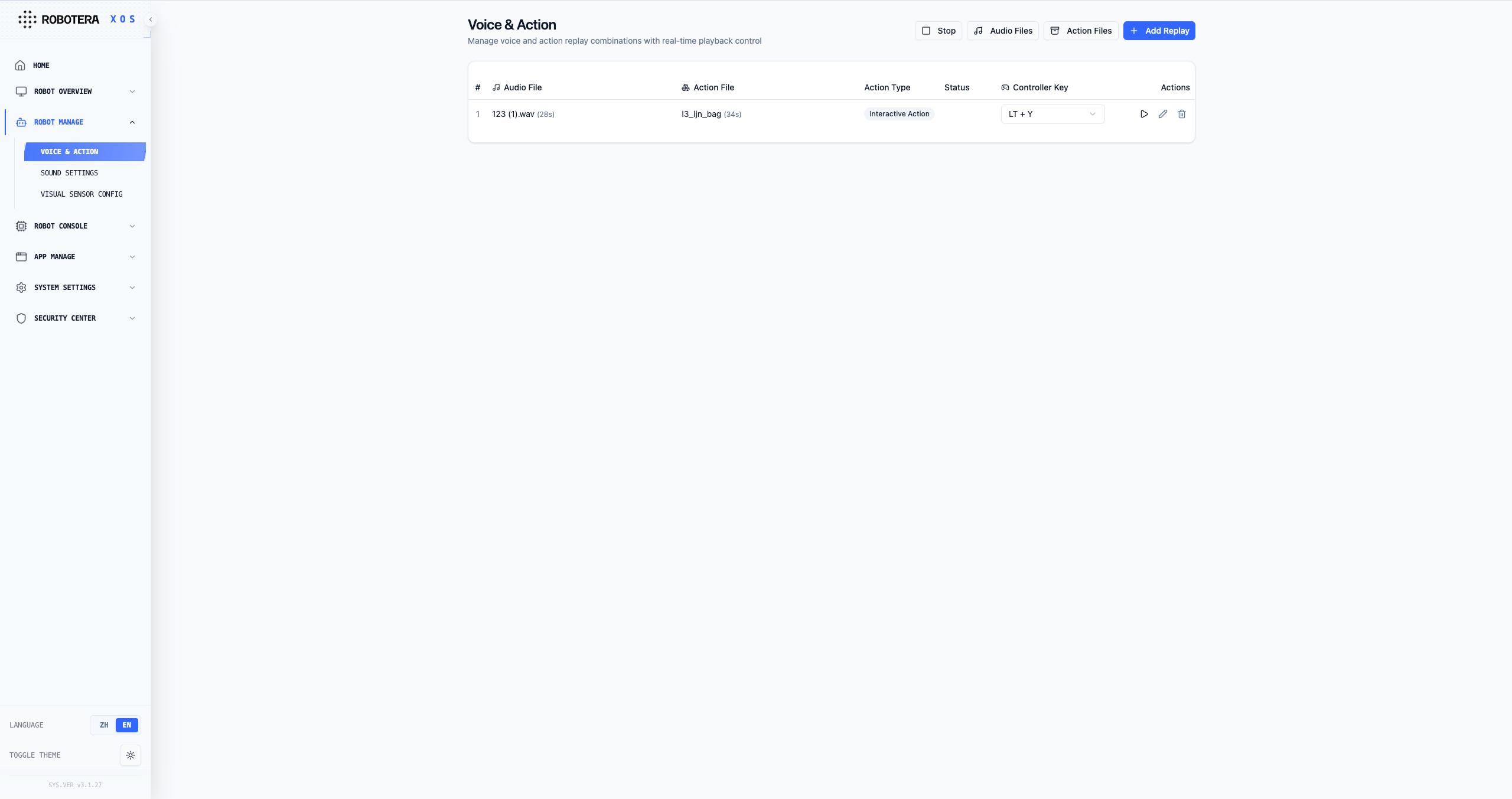
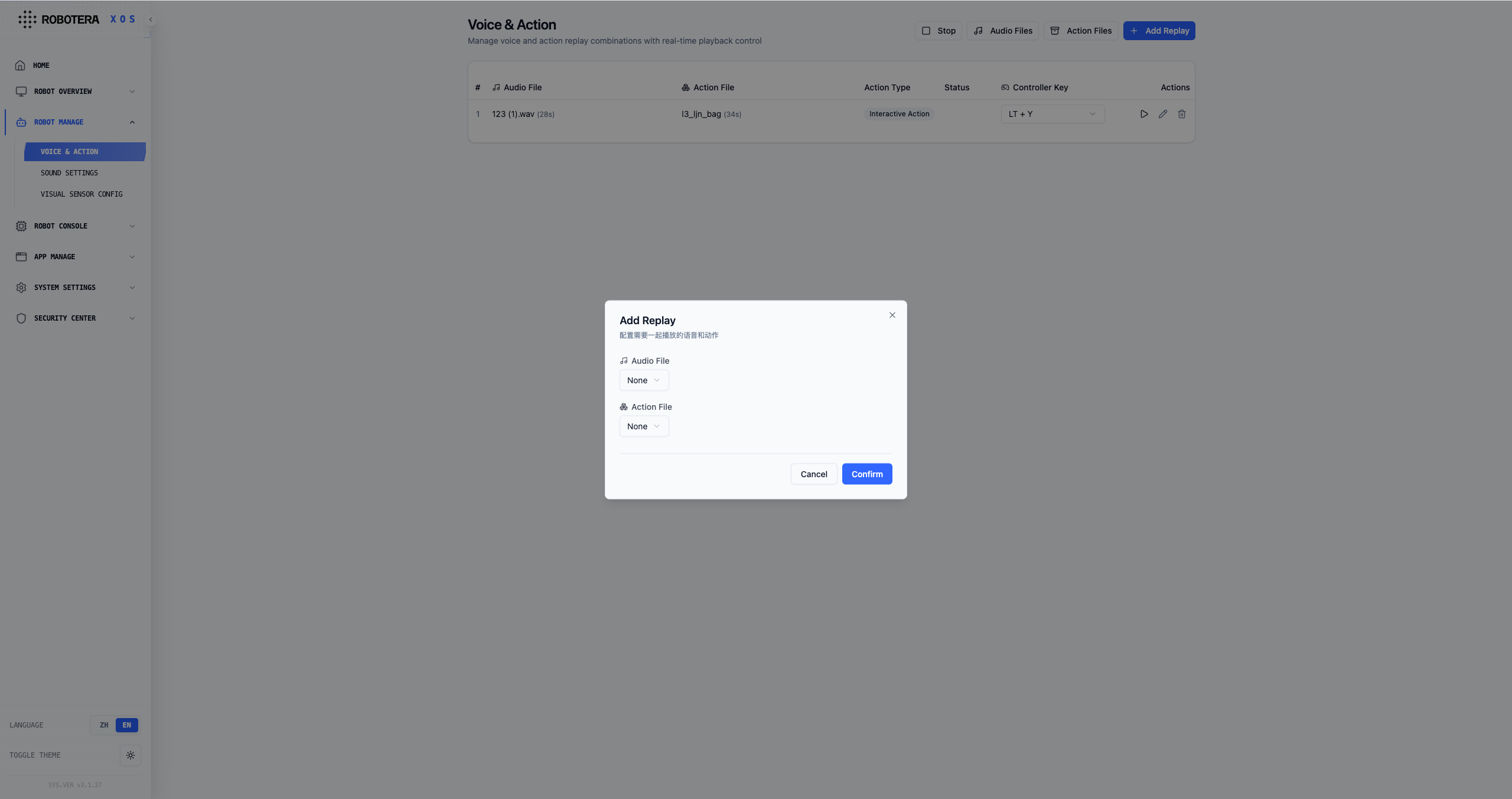
There are two different development methods: replay a recorded upper-body gesture, or train a full-body policy to reproduce a human dance while maintaining balance. The second method is more complex and requires simulation before any real-world test.
16. How to create custom choreography
For custom full-body choreography, first capture a supported human motion or select a motion dataset. Retarget the human pose to the L7's joint limits using a tool such as GMR. Convert the resulting motion into a robot-compatible trajectory, train a tracking policy in simulation and check the policy in a second physics environment before deploying it.
- Human motion capture or dataset
- GMR retargeting to L7 joint structure
- Isaac Lab training and motion tracking
- MuJoCo sim-to-sim evaluation
- Supervised sim-to-real deployment
RobotEra's Humanoid Lab repository includes a motion-tracking pipeline and example dance assets. For real hardware, check the supported controller, body model, safety limits and software-version requirements. A trajectory from a different humanoid is not directly interchangeable.
17. Software and development tools
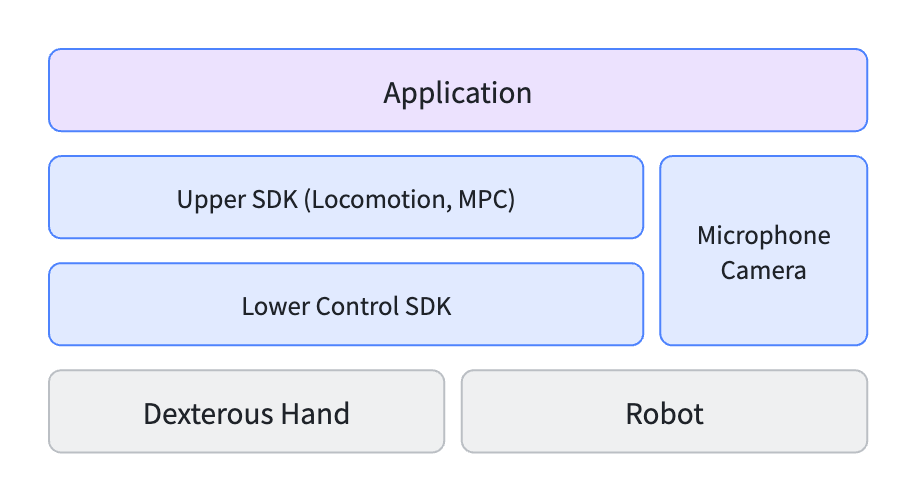
The L7 has a documented developer interface and an ecosystem of training and control tools. Some software is supplied with the robot; other tools are used on a separate development computer.
| Software | Role |
|---|---|
| Ubuntu / Linux | Development and onboard environment |
| XOS | Robot setup and management |
| ROS 2 Humble | Messaging and robot API |
| CycloneDDS | ROS 2 communication middleware |
| Python / SDK | Robot interfaces and application development |
| Isaac Lab | Reinforcement learning and simulation |
| MuJoCo | Physics-based simulation and policy validation |
| GMR | Motion retargeting |
| Xingyao App | Meta Quest teleoperation |
| ERA-42 | RobotEra's proprietary embodied-AI research; confirm access separately |
18. Set up ROS 2 and the developer interface
On a compatible Ubuntu computer, install ROS 2 Humble and the matching CycloneDDS middleware. The manufacturer's public teleoperation repository contains messages and interfaces for the L7. Clone and build it using the documented commands:
git clone https://github.com/roboterax/teleop_client.git
cd teleop_client
colcon build
source install/setup.bash

export ROS_DOMAIN_ID=211
export RMW_IMPLEMENTATION=rmw_cyclonedds_cpp
Configure unicast discovery using the robot's local IP and the manufacturer's CycloneDDS XML example. Add the development computer's IP to the ROS IP allowlist in XOS. Begin with read-only tests. The robot also has a developer container; use the official access instructions and change initial credentials.
The official Python SDK repository is roboterax/xbot_sdk_api. Confirm compatibility with your firmware instead of assuming that every example applies to the delivered version.
19. Read robot sensor data
Connect the ROS 2 environment to the robot and inspect the available topics. These read-only commands can help verify that the joint and IMU data is reaching the computer without commanding the actuators.
ros2 topic list
ros2 topic echo /joint_states --once
ros2 topic echo /imu_broadcaster/imu --once| Topic | Purpose |
|---|---|
| /joint_states | Joint position and state feedback |
| /hand_sensor | Finger force and temperature feedback on tactile hand models |
| /imu_broadcaster/imu | Inertial measurement data |
| /locomotion/move | Locomotion-command topic; do not publish until commissioned |
Read the message type with ros2 topic info. A topic being visible does not prove the robot is ready to receive motion commands.
20. Train and test in simulation
Use RobotEra's public Humanoid Lab project for locomotion and motion-tracking experiments. It is built on Isaac Lab (the documented setup uses Isaac Lab 2.3.2) and includes the workflow for training, sim-to-sim validation in MuJoCo and physical deployment. The repository provides example motion files and demonstrations for both locomotion and dance.
- L7 model and task definition
- Train policy in Isaac Lab
- Check joint limits and contacts
- Validate in MuJoCo
- Deploy only after safety review
Before a physical test, evaluate pose tracking, falls, foot slip, torque saturation and behavior after a stop request. Use the specific deployment instructions for your robot and version.
21. Control L7 with VR teleoperation
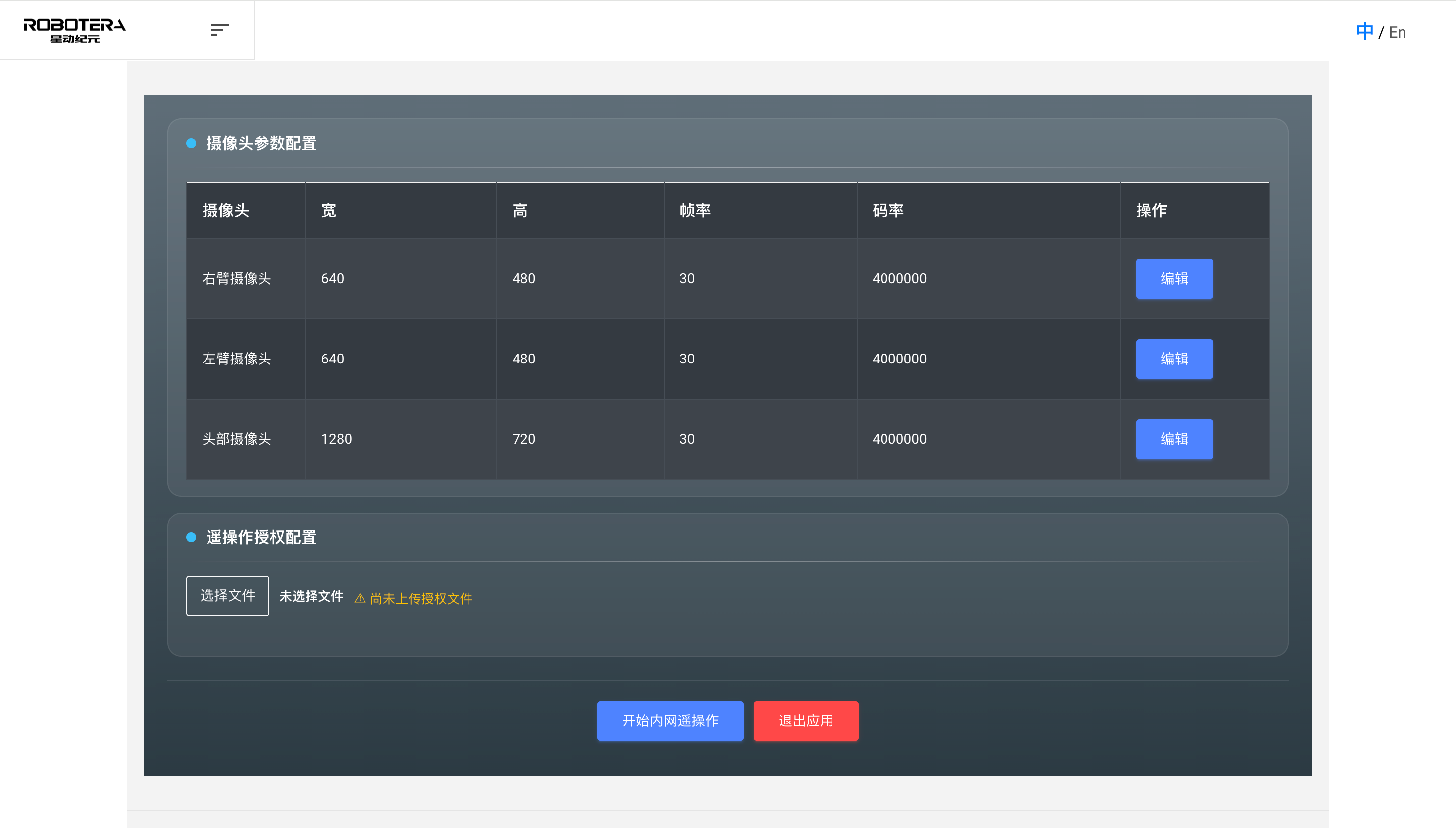
RobotEra supports VR teleoperation using a compatible Meta Quest headset and the Xingyao application. Follow the official authorization process in XOS, connect the headset and robot to the approved network and launch the app. The operator's motions are mapped to the robot while camera and robot-state feedback support supervision.
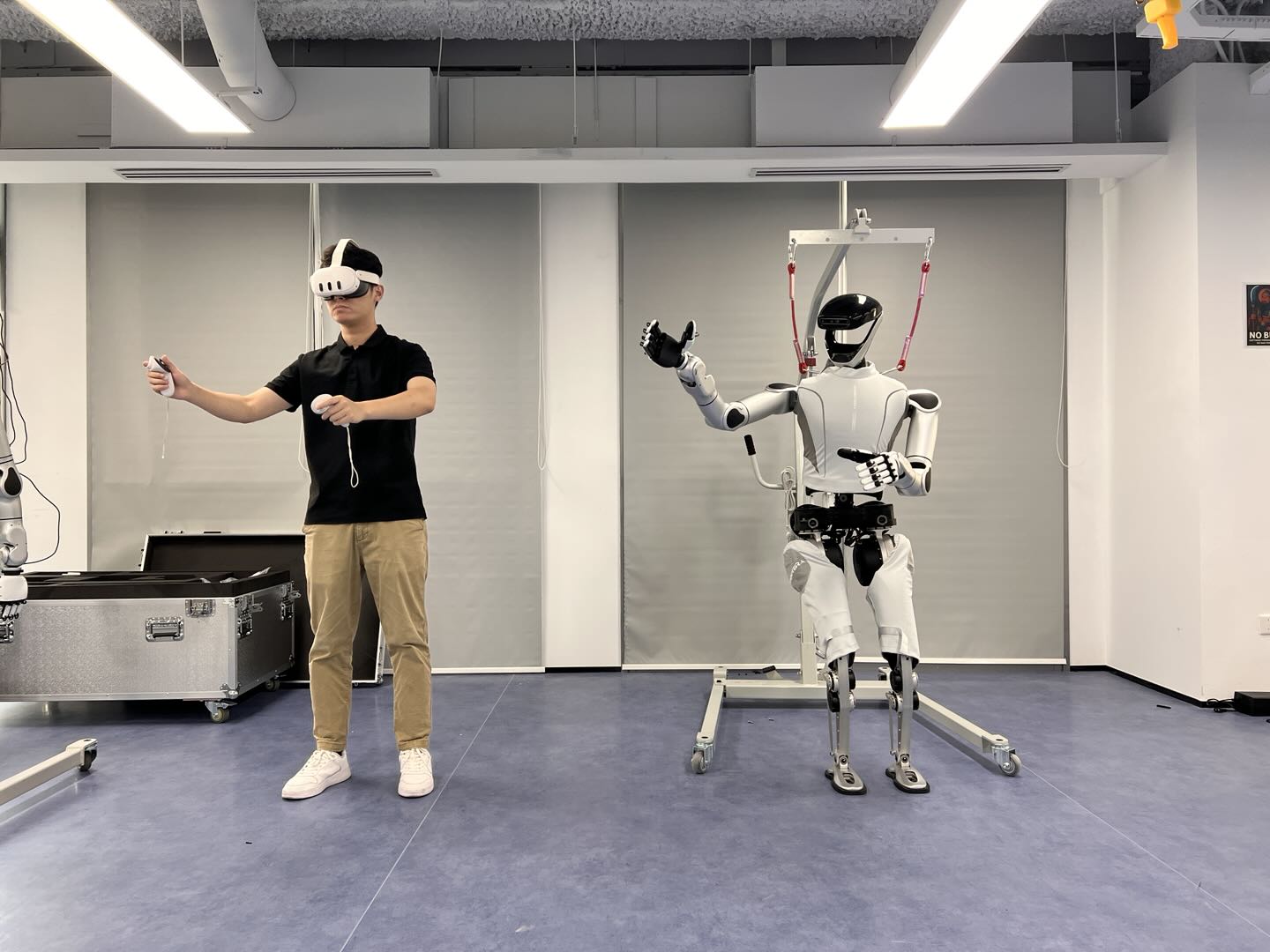
- Human operator with Meta Quest
- Xingyao application
- Robot motion controller and L7
- Camera and robot-state feedback to operator
Use two people during commissioning and recording: a VR operator and a supervisor close to the emergency-stop equipment, outside the robot's movement area. Teleoperation can collect demonstrations for later learning, but human operation and autonomous task completion are separate capabilities.
22. Emergency stop and safe operation
The official emergency-stop remote includes a D button that cuts actuator power. Since L7 is a biped, loss of power can cause it to fall. Keep people outside the fall zone and use the approved support rig for commissioning and high-risk tests.
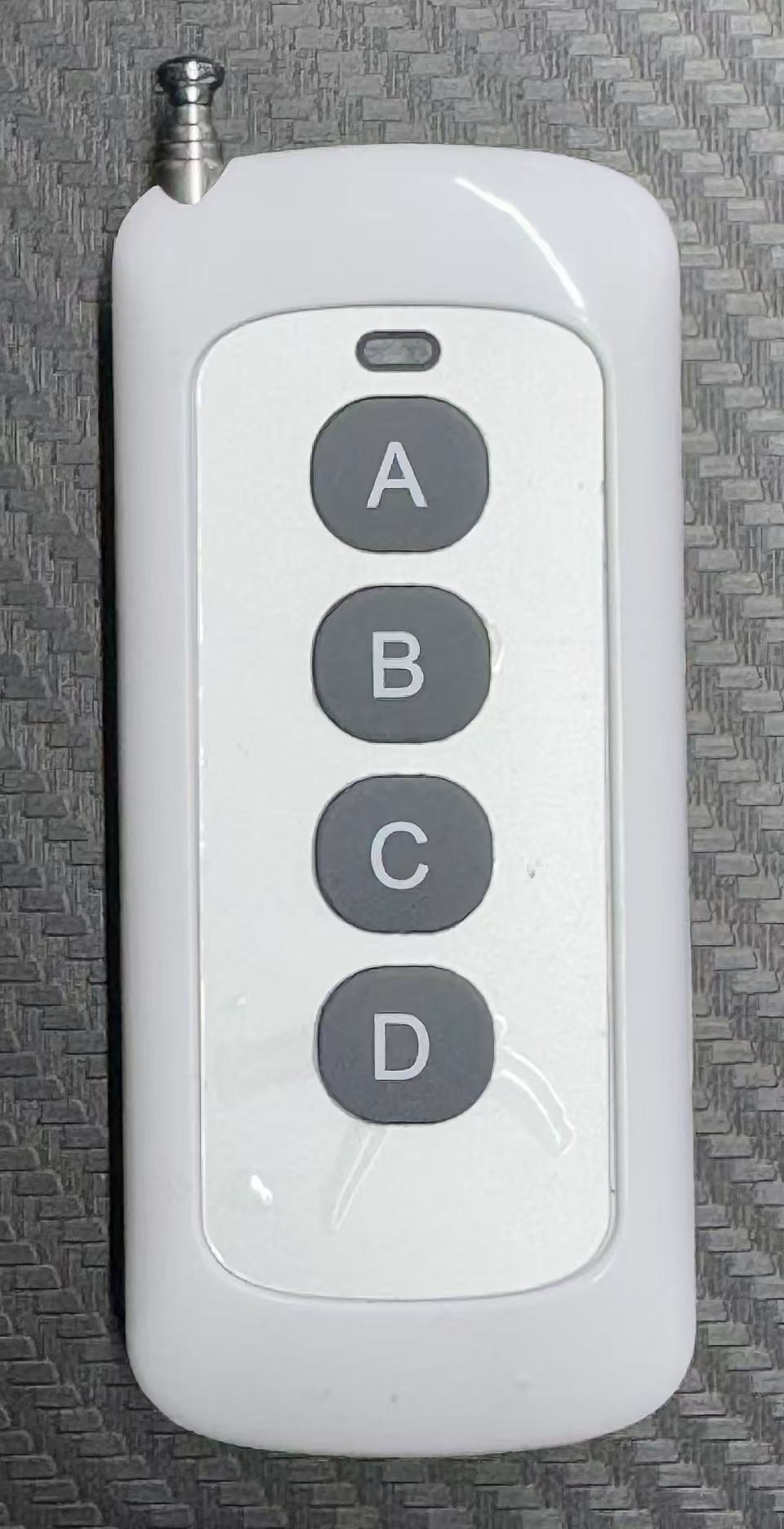
Check battery, connection, firmware and physical condition before each session. Start with slow, supervised tests, do not bypass the manufacturer's safety checks and do not perform high-speed actions close to people. After an emergency stop, follow the manual's recovery process instead of immediately reactivating the joints.
23. Official documentation and developer resources
Primary technical reference: RobotEra L7 Product User Manual v1.9.0. Manufacturer product page: RobotEra L7. Company-issued launch announcement: ROBOTERA Unveils ROBOT L7, July 28, 2025. Founder reference: Jianyu Chen's academic profile and personal research page.
Developer resources: roboterax/teleop_client, roboterax/xbot_sdk_api and roboterax/humanoid-lab on GitHub. The public reseller price is from AIFITLAB's ROBOTERA L7 listing, checked November 17, 2026. Commercial contact: MKT@robotera.com.
Manufacturer figures, public prices and supported interfaces can change. Ask RobotEra for the applicable safety documentation, user manual, SDK version and commercial quotation before operating or purchasing an L7.